Toggle recommended safety rules in SylphSpeak
Turn recommended safety rules on or off so SylphSpeak can help prevent accidental disclosure of sensitive text. Safety rules can block or redact common sensitive patterns before a message is spoken.
Before you start
Section titled “Before you start”Make sure you have:
- SylphSpeak open
Config mode>Speech Rulesopen- A paid SylphSpeak account linked to your active device
Understand recommended safety rules
Section titled “Understand recommended safety rules”Recommended safety rules are in Config mode > Speech Rules, under Safety & Blocking.
SylphSpeak includes three recommended safety rules:
Block phone numbersRedact IP addressesRedact raw URLs
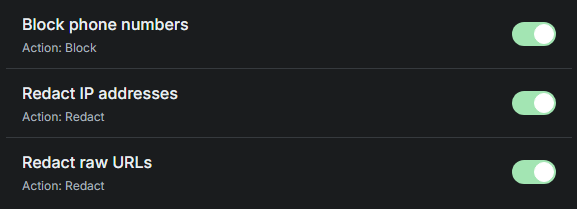
Safety rules can block or redact sensitive text before playback.
These rules help reduce accidental copy-paste mistakes. For example, you might copy sensitive information while working in another document, then try to copy something else for a call. If the second copy does not work, your clipboard may still contain the earlier sensitive text.
Turn a safety rule on or off
Section titled “Turn a safety rule on or off”- In
Config mode, go toSpeech Rules. - Under
Safety & Blocking, find the rule you want to use. - Turn the rule on or off.
- Send a short test message that should trigger the rule.
Customize safety patterns
Section titled “Customize safety patterns”SylphSpeak includes common patterns that are useful in many everyday cases, especially common U.S. formats. You can add or edit patterns for your own locale in Config mode > Advanced, under Safety & Redaction.
Pattern syntax:
X= digit,0–9A= letter,A–Z*= any characters For example,XXX-XXX-XXXXmatches phone numbers in that format. Use one pattern per line. Patterns must be at least5characters long to be used.
Choose redact or block
Section titled “Choose redact or block”Some safety rules can be set to Redact or Block.
Redactremoves the matched content, but preserves the rest of the message for playback.Blockcancels the entire message when matched content is found. UseRedactwhen the rest of the message is still safe to say. UseBlockwhen the whole message should stop if the sensitive pattern appears.
Check that it worked
Section titled “Check that it worked”A safety rule is working when your test message is redacted or blocked as expected. You can also confirm the rule matched in message details:
- Go to
Config mode>Messages. - Select the message you tested.
- Expand
Technical details. - Check
=== Message ===and=== Speech Rules ===to see whether the matching rule was applied.
If the result is not what you expected
Section titled “If the result is not what you expected”If a message is blocked or redacted unexpectedly:
- Review the rule that matched in
Messages>Technical details. - Turn off the rule, or change it from
BlocktoRedactif available. - If you customized patterns, check the pattern in
Config mode>Advanced>Safety & Redaction. - Send another test message.
- Use Custom Safety Rules for more granular rules.
Next step
Section titled “Next step”Turn on one recommended safety rule, send a short test message, then check message details to confirm the rule was applied.