Choose what SylphSpeak does after you send
Choose what SylphSpeak does after you send a message from the overlay.
This setting controls whether SylphSpeak stays ready for more typing, returns keyboard focus to your game or app, or clears itself from the screen.
Where to find this setting
Section titled “Where to find this setting”- Open SylphSpeak.
- Open the config panel.
- Go to
Interface. - Under
Show & hide, find theAfter sendbehavior.
Quick choice
Section titled “Quick choice”Use this table if you already know what you want SylphSpeak to do.
| If you want… | Choose |
|---|---|
| To send several messages in a row | Keep typing |
| To return to your game or app while keeping SylphSpeak visible | Return to game, SylphSpeak stays |
| To return to your game or app, then hide SylphSpeak after a short confirmation | Return to game, then hide |
| To clear the overlay immediately after sending | Hide immediately |
After-send modes
Section titled “After-send modes”Keep typing
Section titled “Keep typing”Choose Keep typing when you expect to send multiple messages in a row.
After you send a message:
- SylphSpeak stays open.
- Keyboard focus stays in the input bar.
- You can keep typing and sending lines.
Best for:
- Active conversations in Discord, games, or live rooms
- Longer thoughts split across multiple lines
- Testing voices, pronunciation, or routing
Mental model: “I’m still talking.”
Return to game, SylphSpeak stays
Section titled “Return to game, SylphSpeak stays”Choose Return to game, SylphSpeak stays when you want to speak once, return to your game or app, and keep SylphSpeak visible.
After you send a message:
- Keyboard focus returns to the app you were using before you summoned SylphSpeak.
- SylphSpeak stays visible on screen.
- The input bar remains available when you summon or refocus SylphSpeak again.
You can also adjust the delay slider, up to 30 seconds. The timer resets each time you send another message. Set the delay to 0 to return focus after one message.
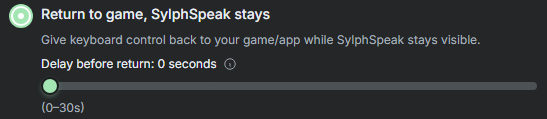
Return to game, SylphSpeak stays and delay options.
Best for:
- Short callouts between gameplay moments
- Controller play with occasional typing
- Watching playback progress without keeping keyboard focus
- Using visible controls instead of keybinds
Mental model: “I’m done typing for the moment, but keep my voice controls nearby.”
Return to game, then hide
Section titled “Return to game, then hide”Choose Return to game, then hide when you want to return to your game or app immediately, but still see that SylphSpeak started speaking.
After you send a message:
- Keyboard focus returns right away.
- The input bar disappears.
- The message tracking glass glow stays visible until the message finishes speaking.
You can interact with the glass glow until it disappears. If you want more time to see the glass glow after message delivery, increase its delay.
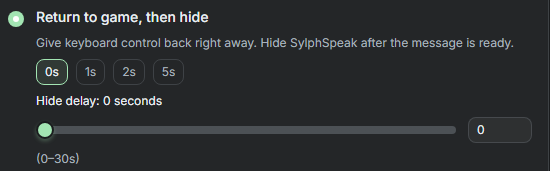
Return to game, then hide and delay options.
Best for:
- Quick callouts where you still want confirmation
- Longer messages where you want to see speaking begin
- Keeping your screen mostly clear without losing feedback
Mental model: “Let me see that it worked, then get it out of the way.”
Hide immediately
Section titled “Hide immediately”Choose Hide immediately when speed and visual clearance matter more than confirmation.
After you send a message:
- Keyboard focus returns right away.
- The input bar disappears.
- The message tracking glass glow disappears.
- SylphSpeak clears itself from the screen.
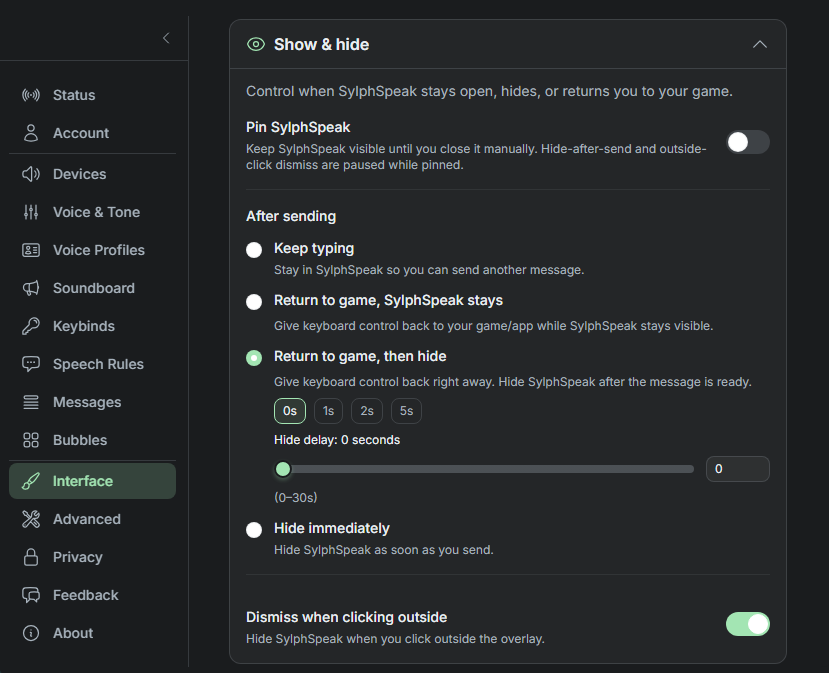
Show and hide settings.
Best for:
- Competitive play or limited screen space
- Very short repeated callouts
- Streaming or recording where you want the overlay gone fast
Mental model: “Send it and get out of my way.”
Pinning and hide modes
Section titled “Pinning and hide modes”Pinning SylphSpeak keeps the overlay visible. If SylphSpeak is pinned, the two hide modes may not dismiss the overlay as expected.
Check that it worked
Section titled “Check that it worked”Send a short test line in SylphSpeak.
The right mode is working when SylphSpeak behaves the way you chose after the message sends: it stays focused, returns focus to your app, hides after confirmation, or hides immediately.
Next step
Section titled “Next step”If the mode feels too fast or too slow, return to Interface > Show & hide and adjust the delay options.