Use text prediction in SylphSpeak
Use text prediction to finish words faster while you type in SylphSpeak. Text prediction works like the prediction bar on a mobile keyboard. It can suggest completions inline and below the input bar so you do not have to type every word fully.
Before you start
Section titled “Before you start”Make sure you have:
- SylphSpeak open
- A paid SylphSpeak account linked to your active device
Understand the prediction bar
Section titled “Understand the prediction bar”When text prediction is enabled, the prediction bar appears below the input bar.
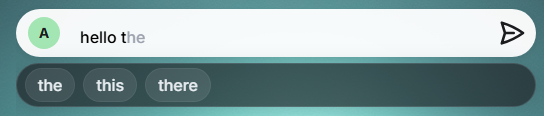
The text prediction bar appears below the input bar when enabled.
SylphSpeak can show:
- Inline autocomplete
- Suggestion 1
- Suggestion 2
- Suggestion 3 You can select suggestions directly, or use keybinds to accept or cycle through them.
Let predictions learn from messages
Section titled “Let predictions learn from messages”Text prediction can learn from your messages to improve suggestions over time.
You can turn this learning on or off in Config mode > Advanced, under Input Systems.

Learning can improve text prediction suggestions over time.
Turn text prediction off
Section titled “Turn text prediction off”If you do not want suggestions while typing, turn text prediction off.
- Open
Config mode. - Go to
Advanced. - Under
Input Systems, turn off text prediction.

Turn off text prediction from Advanced settings.
Change how many suggestions appear
Section titled “Change how many suggestions appear”You can choose how many suggestions appear in the prediction bar.
- Open
Config mode. - Go to
Advanced. - Under
Input Systems, adjust the suggestion count. You can show between1and5suggestions.

Increase or decrease how many suggestions appear.
Check that it worked
Section titled “Check that it worked”Text prediction is working when suggestions appear below the input bar while you type. If you turned text prediction off, the prediction bar should no longer appear.
Next step
Section titled “Next step”Try typing a short message and accepting one suggestion. If you prefer keyboard control, review your keybinds for accepting, selecting, and cycling suggestions.