Choose a voice in SylphSpeak
Choose a SylphSpeak voice, tune how it sounds, and save it as a voice profile you can return to later.
Before you start
Section titled “Before you start”Make sure you have:
- SylphSpeak open
Config mode>Voice & Toneopen- A paid SylphSpeak account linked to your active device
Understand the active voice card
Section titled “Understand the active voice card”The top card shows your active voice settings. This is the voice SylphSpeak is currently using.

The active voice card shows the voice SylphSpeak is currently using.
Find a voice
Section titled “Find a voice”Use Voice Selection to browse available voices.
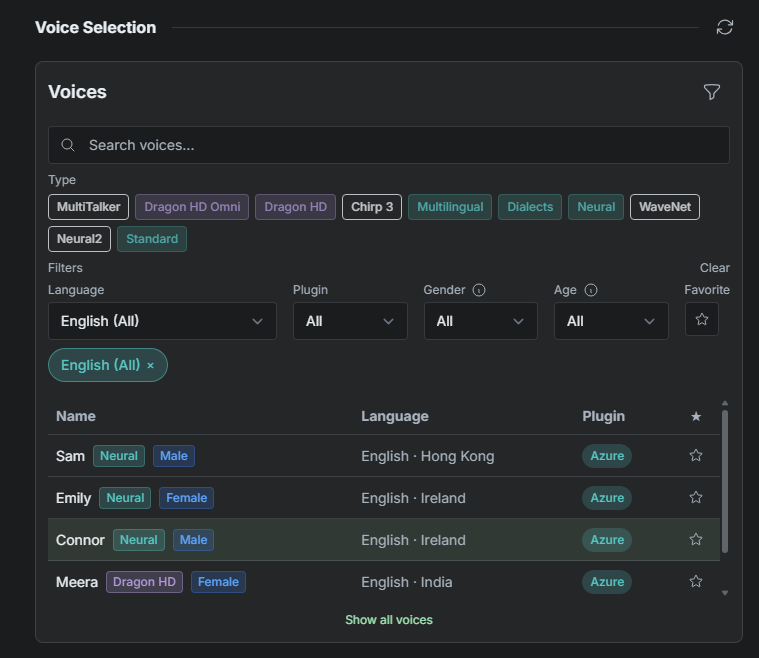
Use Voice Selection to search, filter, and choose a voice.
To narrow the list, you can:
- Search by voice name
- Filter by language or region
- Filter by plugin
- Filter by gender or age
- Filter by TTS model name
- Select
Show all voicesto show more options
For how UI language, TTS languages, and typed language interact, see Languages in SylphSpeak.
To pin a voice for later, select the star icon. You can then filter by favorites.
Tune the voice
Section titled “Tune the voice”After you select a voice, use the tuning controls below Voice Selection to adjust how it sounds.
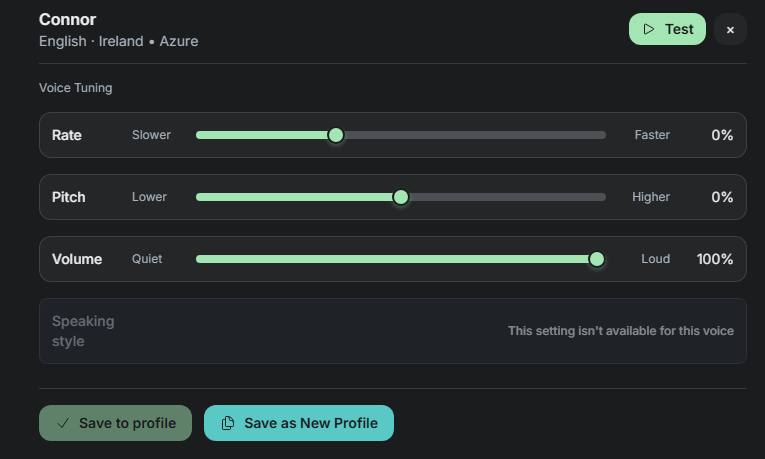
Tune the selected voice, then save it as a profile if you like it.
Not every voice supports every tuning option. If a control is not available for the selected voice, it appears grayed out.
Send a test message
Section titled “Send a test message”To hear the current voice settings, select Test.
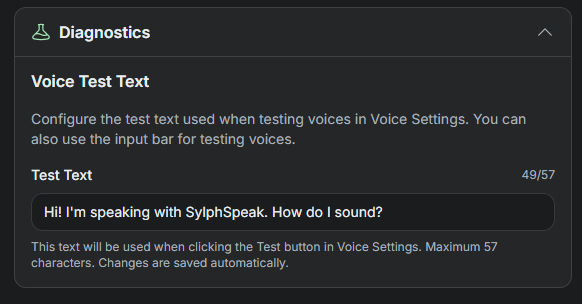
Change Voice test text to customize what the Test button says.
Save a voice profile
Section titled “Save a voice profile”If you like the voice and tuning settings, select Save as New Profile.
You can return to the saved voice later from Config mode > Voice Profiles, then select your saved profile.
You can also change the profile name and design at the top of the Voice & Tone active voice card.
Use speaking styles
Section titled “Use speaking styles”Some voices include speaking styles, such as emotional styles.
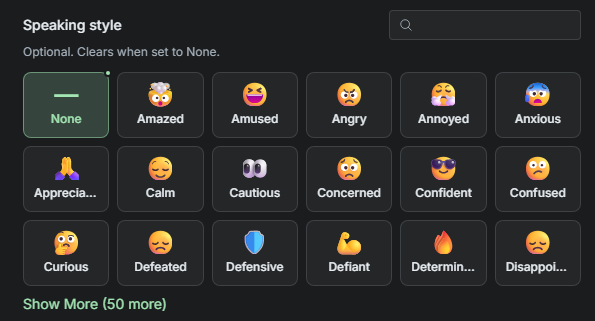
Some voices include speaking style options.
Manage cached audio
Section titled “Manage cached audio”SylphSpeak caches repeated messages so they can play faster the next time you send them.
For some voices, the same message can be generated with slightly different emotion or delivery. If a phrase sounds exactly the way you want, you can keep that version by selecting Lock cached audio. If you want SylphSpeak to generate the phrase again, select Clear cached audio.
You can find these controls in Config mode > Messages. Open the message, expand it once, then expand Technical details.
Preview unsaved changes
Section titled “Preview unsaved changes”If you change voice settings while using an active voice profile, the active voice enters Preview mode. This means the current settings are different from the saved profile.
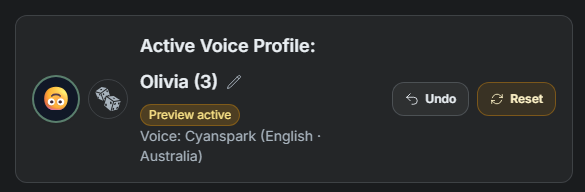
Preview mode appears when current settings differ from the saved voice profile.
If you want to go back to the saved settings, select Reset. To undo one change, select Undo.
You can also change the voice profile appearance. Select the icon to choose an appearance, or select the dice button to pick a random one.
To update your current voice profile, scroll to the bottom of Voice & Tone and select Save to profile. To keep the old profile as-is and save a new one, select Save as New Profile.

Save changes to the current profile, or save them as a new profile.
Open Voice & Tone from the utility bar
Section titled “Open Voice & Tone from the utility bar”The utility bar shows the current voice. If any setting differs from the active voice profile, a yellow dot appears. This can include the voice, rate, pitch, volume, or speaking style.
Select the voice button to open Voice & Tone. If Voice & Tone is already open, select the button again to return to overlay mode.
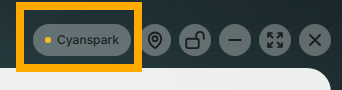
Use the utility bar to open Voice & Tone quickly.
Refresh or clear the voice list
Section titled “Refresh or clear the voice list”If the voice list needs to reload, select the refresh icon next to Voice Selection.

Refresh the voice catalog if the voice list needs to reload.
To reset filters, select Clear for the filter group you want to reset.
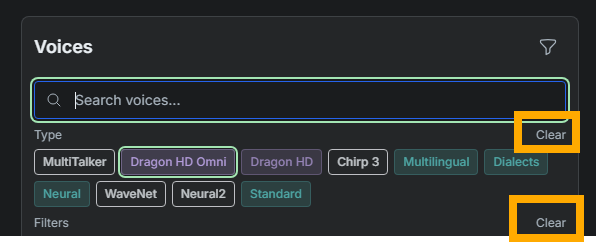
Clear filters to reset the voice list.
Check that it worked
Section titled “Check that it worked”Your voice is ready when the active voice card shows the voice and tuning settings you want. If you saved the voice as a profile, it should appear in Config mode > Voice Profiles.
Next step
Section titled “Next step”Try sending a short line with the voice. If it sounds right, keep using it or save it as a profile for later.