Use bubbles in SylphSpeak
Use bubbles as visual shortcuts for SylphSpeak actions, so you can change settings or trigger common actions without opening the full config panel every time.
Before you start
Section titled “Before you start”Make sure you have:
- SylphSpeak open
Config mode>Bubblesopen- A paid SylphSpeak account linked to your active device
Understand bubbles
Section titled “Understand bubbles”Bubbles are circular icon buttons that appear next to the input bar. Select a bubble to trigger its assigned SylphSpeak shortcut. Bubbles are useful when you prefer visual controls, or when you want quick access to actions without memorizing keybinds.
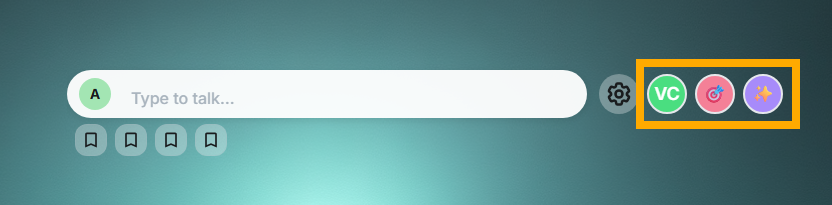
Bubbles appear to the right of the config button.
Open Bubbles settings
Section titled “Open Bubbles settings”- Select the settings cog to open
Config mode. - Select
Bubbles.
Understand loadouts
Section titled “Understand loadouts”A loadout is a saved group of bubbles that appears next to the input bar. You can save up to four bubble loadouts. Only one loadout can be active at a time.
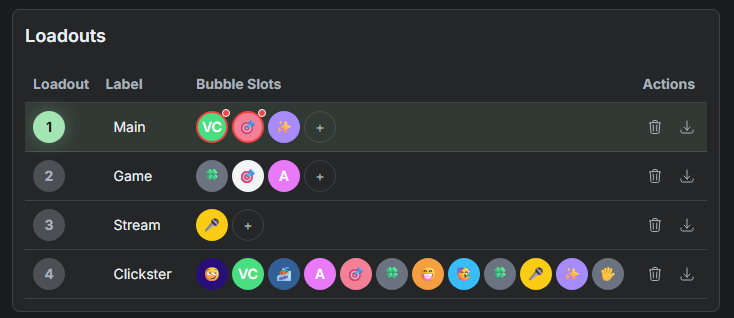
Use the loadout table to manage up to four bubble layouts.
Add bubbles to a loadout
Section titled “Add bubbles to a loadout”- In the loadout table, find the loadout you want to edit.
- Select the
+button on that loadout.
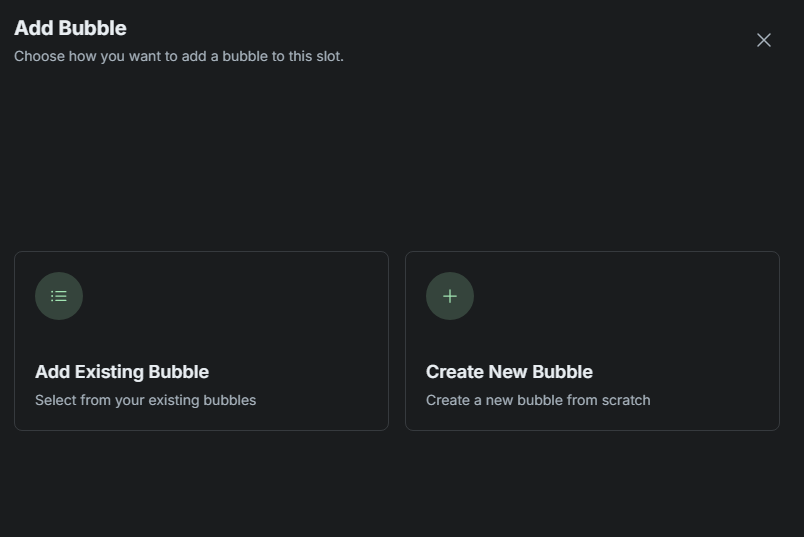
Select the plus button to add a bubble to a loadout.
- Select
Add Existing Bubble. - Choose up to 12 bubbles for the loadout.
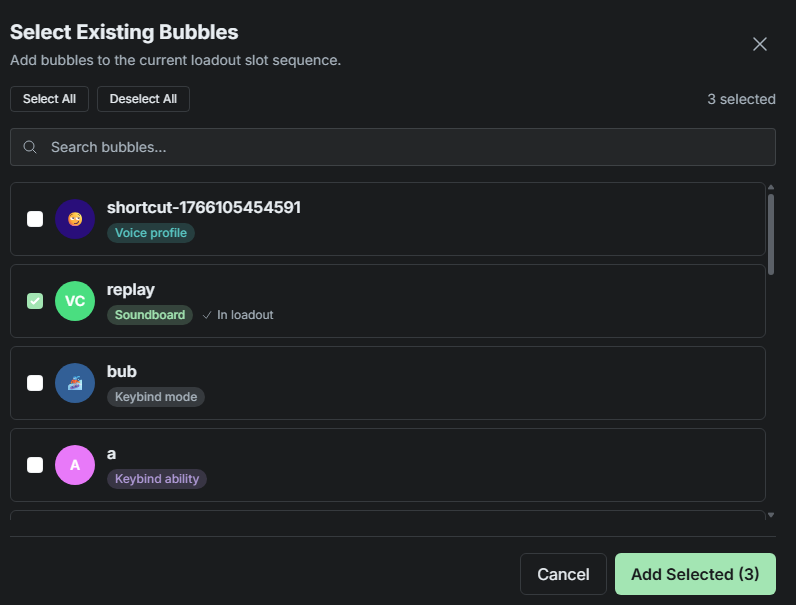
Select existing bubbles to add them to the loadout.
Reorder bubbles in a loadout
Section titled “Reorder bubbles in a loadout”To change the order, drag bubbles inside the loadout. If the bubbles are hard to click, double-click a blank area of the loadout. SylphSpeak opens a larger view where you can drag bubbles more easily.
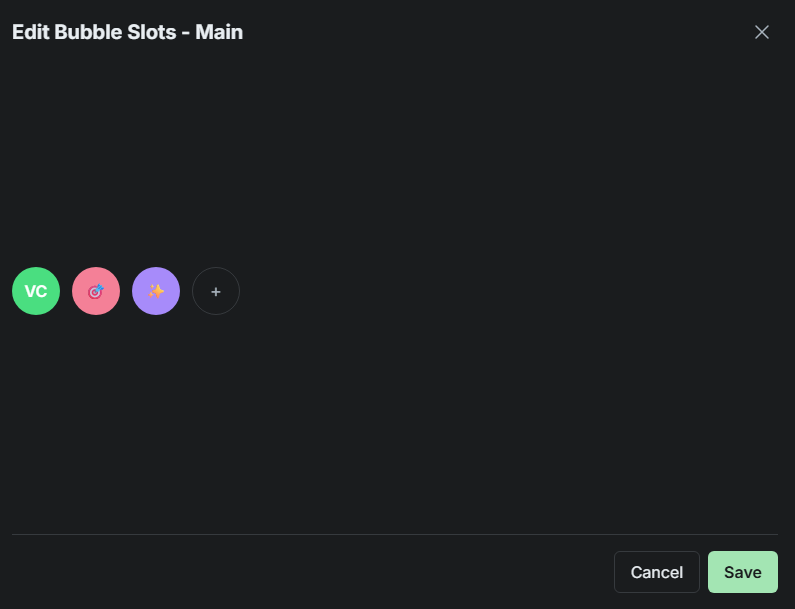
Double-click a blank area of the loadout to arrange bubbles in a larger view.
Create a bubble
Section titled “Create a bubble”You can create a bubble from either the loadout table or the bubbles table. To create one from a loadout:
- Select the
+button on the loadout you want to edit. - Select
Create new bubble. To create one from the bubbles table: - Go to the top-right of the
Bubblestable. - Select
Create bubble.
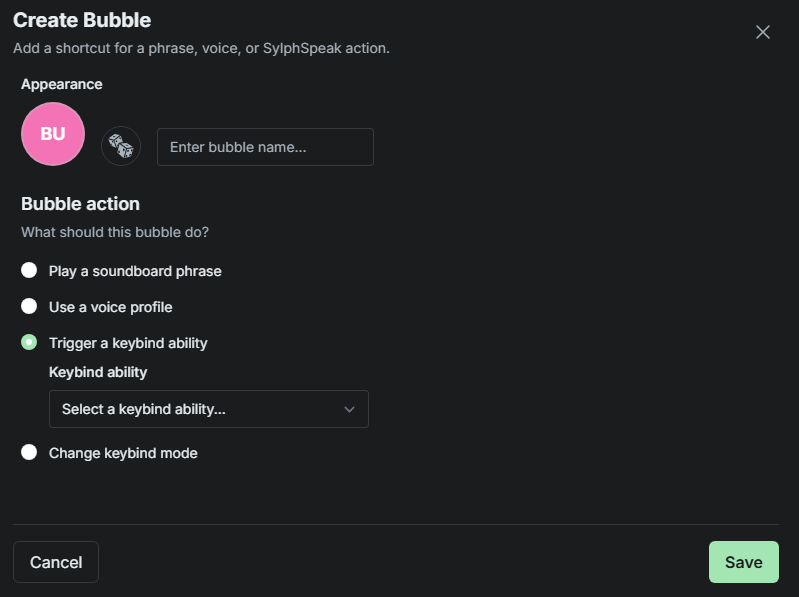
Create a new bubble from a loadout or from the Bubbles table.
Configure a bubble
Section titled “Configure a bubble”When you create or edit a bubble:
- Select the icon to change the bubble design.
- Select the dice button if you want a random appearance.
- Select a bubble action.
- Select the specific action you want the bubble to run.
- Add a name.
- Select
Save.

Choose the bubble design, action, and name.
Pick the specific action the bubble should trigger.

The purple bubble icon means you can create a bubble for that action.
Assign a bubble to multiple loadouts
Section titled “Assign a bubble to multiple loadouts”In the Bubbles table, you can assign one bubble to more than one loadout.
- Find the bubble in the table.
- Select its loadout field.
- Choose the loadouts where the bubble should appear.
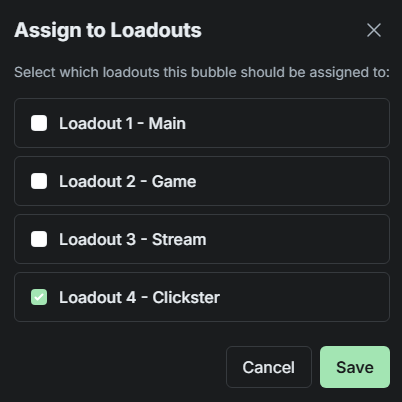
Assign a bubble to multiple loadouts from the Bubbles table.
Manage bubbles
Section titled “Manage bubbles”Use the Bubbles table to search, filter, edit, and delete bubbles.
To delete a bubble, select the trash can icon under Actions.
The Status column shows whether a bubble is ready. A bubble can show an error if its linked action is no longer available. For example, this can happen if you delete a voice profile or soundboard item, or if you switch from Windows to macOS and the selected system voice is not available.
In the loadout table, a bubble with an error shows a red dot on the top-right of its icon.
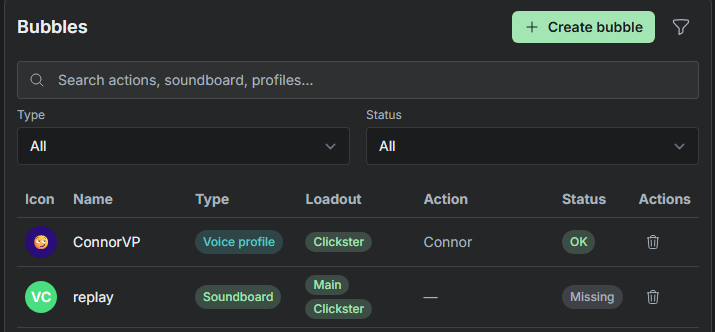
Use the Bubbles table to edit, filter, assign, or delete bubbles.
Check that it worked
Section titled “Check that it worked”Your bubbles are ready when the active loadout appears next to the input bar and each bubble triggers the action you assigned.
Next step
Section titled “Next step”Try creating one bubble for an action you use often. If you need faster access without clicking, consider setting up a keybind for the same action.