Use keybinds in SylphSpeak
Use keybinds to trigger SylphSpeak actions from the keyboard.
Before you start
Section titled “Before you start”Make sure you have:
- SylphSpeak open
Config mode>Keybindsopen- A paid SylphSpeak account linked to your active device
Understand keybind slots
Section titled “Understand keybind slots”Each action can have up to three keybinds: Slot 1, Slot 2, and Slot 3.
Only Toggle Overlay under Overlay & UI is a global keybind. This means SylphSpeak can use it even when SylphSpeak is not focused.
All other keybinds only work when SylphSpeak is focused.
Use chord keybinds
Section titled “Use chord keybinds”SylphSpeak supports chord keybinds. A chord keybind starts with a normal keybind, then uses a second key within a short time.
For example:
Ctrl + Shift + X, then 2
This is different from pressing only Ctrl + Shift + X, or pressing 2 after the chord timer runs out.
Draft Stash actions use chord keybinds by default. Chords give you more shortcut combinations without taking over too many simple keybinds.
Switch between Windows and macOS
Section titled “Switch between Windows and macOS”Keybinds are saved, and SylphSpeak maps standard modifier keys across operating systems.
For example, Ctrl on Windows maps to ⌘ on macOS. It does not stay as literal Ctrl on macOS.
Use keybind modes
Section titled “Use keybind modes”Modes are optional. Most users do not need them. Use a mode when you want a second set of keybinds, for example for a game whose shortcuts conflict with SylphSpeak defaults. Base keybinds always apply. Select New mode to create a custom mode, then choose it in the modes card. Select Base only (or turn the mode off) to use base keybinds alone. Only one custom mode can be on at a time.
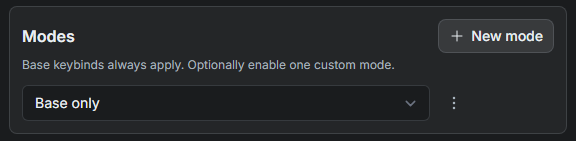
Modes card: create a mode with New mode, then choose Base only or a custom mode.
Enable or disable a mode
Section titled “Enable or disable a mode”Choose a mode from the dropdown, or choose Base only to turn custom modes off.
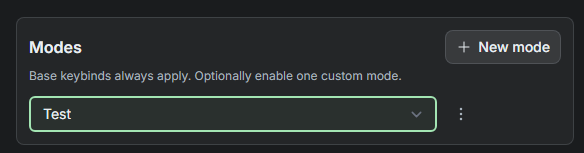
Select a custom mode, or Base only.
When a mode is on, its row appears below base in the keybind editor. Mode keybinds override base for actions that have a binding in that mode. Edit a mode’s slots while that mode is selected.
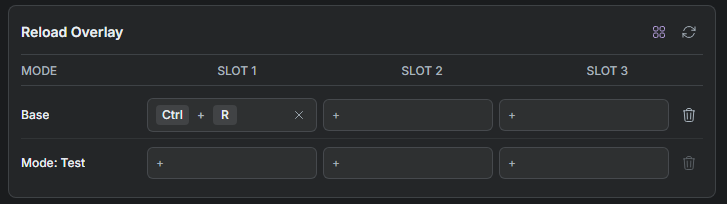
An active custom mode appears below the base row.
Default keybinds
Section titled “Default keybinds”The tables below show the default keybinds for Windows and macOS.
Ctrl on Windows and ⌘ on macOS; Alt is ⌥ on macOS.
Windows OS
Section titled “Windows OS”| Keybind | Slot 1 | Slot 2 | Slot 3 |
| Toggle Overlay | Ctrl+\\` | Ctrl+Shift+Space | Ctrl+Alt+Space |
| Focus Input Bar | Ctrl+; | ||
| Exit Overlay | Esc | ||
| Reload Overlay | Ctrl+R | ||
| Pin Overlay | Ctrl+Shift+P | ||
| Open Settings | Ctrl+L | ||
| Send Message | Enter | ||
| Undo Send | Ctrl+Z | ||
| Paste & Send | Ctrl+Alt+V | ||
| Accept Suggestion | Ctrl+Right | ||
| Cycle Suggestions | Tab | ||
| Select Suggestion 1 | Ctrl+Alt+1 | ||
| Select Suggestion 2 | Ctrl+Alt+2 | ||
| Select Suggestion 3 | Ctrl+Alt+3 | ||
| Replay Last Message | Ctrl+E | ||
| Stop Speaking | Ctrl+. | ||
| Bubble 1 | Alt+1 | ||
| Bubble 2 | Alt+2 | ||
| Bubble 3 | Alt+3 | ||
| Bubble 4 | Alt+4 | ||
| Bubble 5 | Alt+5 | ||
| Bubble 6 | Alt+6 | ||
| Bubble 7 | Alt+7 | ||
| Bubble 8 | Alt+8 | ||
| Bubble 9 | Alt+9 | ||
| Bubble 10 | Alt+0 | ||
| Bubble 11 | Alt+- | ||
| Bubble 12 | Alt+= | ||
| Cycle Next Voice | Ctrl+Alt+Up | ||
| Cycle Previous Voice | Ctrl+Alt+Down | ||
| Switch to Main Voice | Ctrl+Alt+F | ||
| Route A | Alt+Z | ||
| Route B | Alt+X | ||
| Route C | Alt+C | ||
| Route D | Alt+V | ||
| Cycle Next Route | Ctrl+Alt+PageUp | ||
| Cycle Previous Route | Ctrl+Alt+PageDown | ||
| Increase Mic Volume | Ctrl+Alt+= | ||
| Decrease Mic Volume | Ctrl+Alt+- | ||
| Increase App Output Volume | Ctrl+Shift+= | ||
| Decrease App Output Volume | Ctrl+Shift+- | ||
| Save to Draft Stash 1 | Ctrl+Shift+S,1 | ||
| Save to Draft Stash 2 | Ctrl+Shift+S,2 | ||
| Save to Draft Stash 3 | Ctrl+Shift+S,3 | ||
| Save to Draft Stash 4 | Ctrl+Shift+S,4 | ||
| Insert Draft Stash 1 | Ctrl+Shift+I,1 | ||
| Insert Draft Stash 2 | Ctrl+Shift+I,2 | ||
| Insert Draft Stash 3 | Ctrl+Shift+I,3 | ||
| Insert Draft Stash 4 | Ctrl+Shift+I,4 | ||
| Clear Draft Stash 1 | Ctrl+Shift+X,1 | ||
| Clear Draft Stash 2 | Ctrl+Shift+X,2 | ||
| Clear Draft Stash 3 | Ctrl+Shift+X,3 | ||
| Clear Draft Stash 4 | Ctrl+Shift+X,4 |
| Keybind | Slot 1 | Slot 2 | Slot 3 |
| Toggle Overlay | ⌘+\\` | ⌘+⇧+Space | ⌘+⌥+Space |
| Focus Input Bar | ⌘+; | ||
| Exit Overlay | Esc | ||
| Reload Overlay | ⌘+R | ||
| Pin Overlay | ⌘+⇧+P | ||
| Open Settings | ⌘+L | ||
| Send Message | Enter | ||
| Undo Send | ⌘+Z | ||
| Paste & Send | ⌘+⌥+V | ||
| Accept Suggestion | ⌘+Right | ||
| Cycle Suggestions | Tab | ||
| Select Suggestion 1 | ⌘+⌥+1 | ||
| Select Suggestion 2 | ⌘+⌥+2 | ||
| Select Suggestion 3 | ⌘+⌥+3 | ||
| Replay Last Message | ⌘+E | ||
| Stop Speaking | ⌘+. | ||
| Bubble 1 | ⌥+1 | ||
| Bubble 2 | ⌥+2 | ||
| Bubble 3 | ⌥+3 | ||
| Bubble 4 | ⌥+4 | ||
| Bubble 5 | ⌥+5 | ||
| Bubble 6 | ⌥+6 | ||
| Bubble 7 | ⌥+7 | ||
| Bubble 8 | ⌥+8 | ||
| Bubble 9 | ⌥+9 | ||
| Bubble 10 | ⌥+0 | ||
| Bubble 11 | ⌥+- | ||
| Bubble 12 | ⌥+= | ||
| Cycle Next Voice | ⌘+⌥+Up | ||
| Cycle Previous Voice | ⌘+⌥+Down | ||
| Switch to Main Voice | ⌘+⌥+F | ||
| Route A | ⌥+Z | ||
| Route B | ⌥+X | ||
| Route C | ⌥+C | ||
| Route D | ⌥+V | ||
| Cycle Next Route | ⌘+⌥+PageUp | ||
| Cycle Previous Route | ⌘+⌥+PageDown | ||
| Increase Mic Volume | ⌘+⌥+= | ||
| Decrease Mic Volume | ⌘+⌥+- | ||
| Increase App Output Volume | ⌘+⇧+= | ||
| Decrease App Output Volume | ⌘+⇧+- | ||
| Save to Draft Stash 1 | ⌘+⇧+S,1 | ||
| Save to Draft Stash 2 | ⌘+⇧+S,2 | ||
| Save to Draft Stash 3 | ⌘+⇧+S,3 | ||
| Save to Draft Stash 4 | ⌘+⇧+S,4 | ||
| Insert Draft Stash 1 | ⌘+⇧+I,1 | ||
| Insert Draft Stash 2 | ⌘+⇧+I,2 | ||
| Insert Draft Stash 3 | ⌘+⇧+I,3 | ||
| Insert Draft Stash 4 | ⌘+⇧+I,4 | ||
| Clear Draft Stash 1 | ⌘+⇧+X,1 | ||
| Clear Draft Stash 2 | ⌘+⇧+X,2 | ||
| Clear Draft Stash 3 | ⌘+⇧+X,3 | ||
| Clear Draft Stash 4 | ⌘+⇧+X,4 |
Check that it worked
Section titled “Check that it worked”Your keybinds are ready when the action triggers from the keyboard in the context where you expect it to work. Remember:
Toggle Overlaycan work globally.- Other keybinds work when SylphSpeak is focused.
- Mode keybinds override base only when that mode is on and has a keybind for the action.
- Draft Stash keybinds are chord sequences, which you can change.
Next step
Section titled “Next step”Try one keybind you use often. If you prefer visual shortcuts instead, set up a bubble for the same action.