Link your device
Link your SylphSpeak device to your account after onboarding. When your device is linked, SylphSpeak can stay connected to your account and keep your setup ready for the next live moment.
Before you start
Section titled “Before you start”Make sure you have:
- Finished or exited the SylphSpeak onboarding flow
- Opened SylphSpeak on your computer
- A SylphSpeak account you can sign in to
Open the login screen
Section titled “Open the login screen”After onboarding, SylphSpeak may open in one of two places.
Option A: You are on the main input screen
Section titled “Option A: You are on the main input screen”- Select
View statusor thecog iconto the right of the input bar.
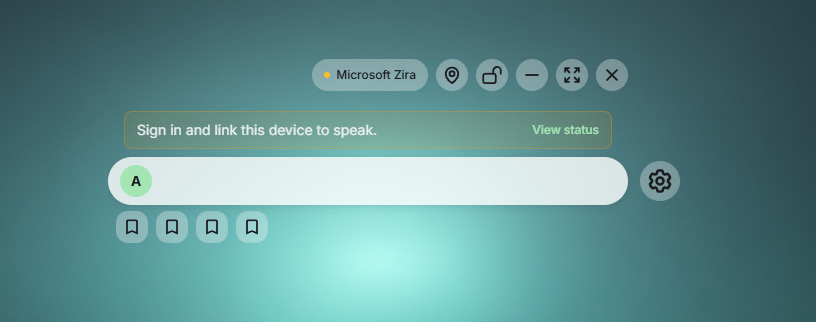
Open settings from the main input screen.
- In the config panel, select
Log Infrom the left menu.

Selecting the config icon button brings you to config mode.
Option B: You are already in the config panel
Section titled “Option B: You are already in the config panel”If onboarding opens the config panel, you may land on the Voice & Tone tab.
- Select
Log Infrom the left menu.
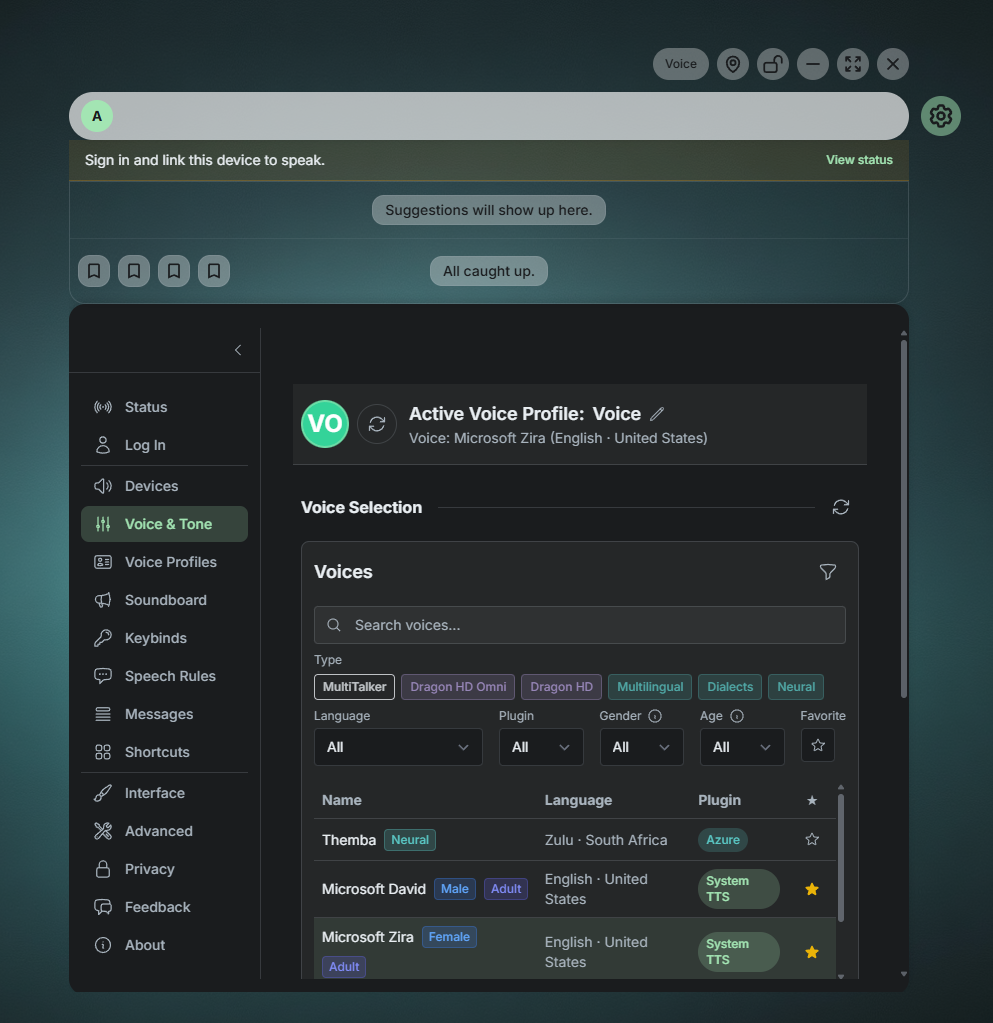
Find Log In in the left menu.
Link your device
Section titled “Link your device”- On the login screen, follow the sign-in prompt.
- Complete sign-in in your browser if SylphSpeak opens one.
- Return to SylphSpeak.
- Continue through the device linking prompts.
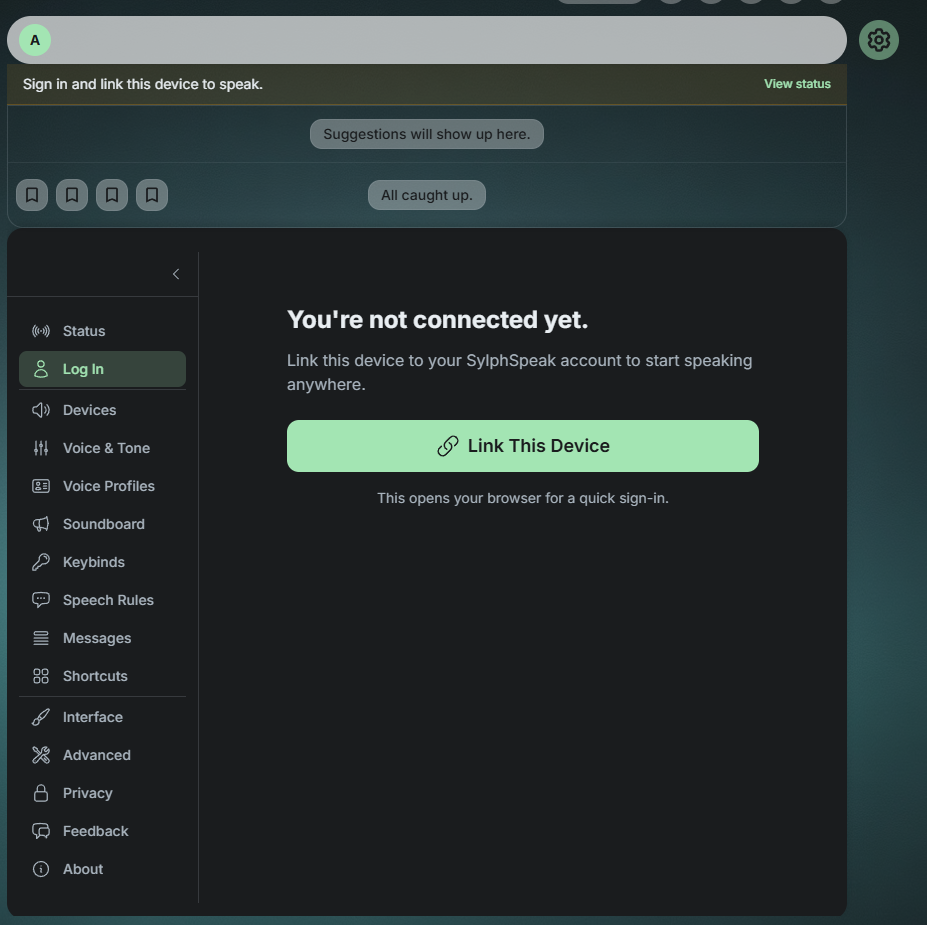
Start signing in to your SylphSpeak account.
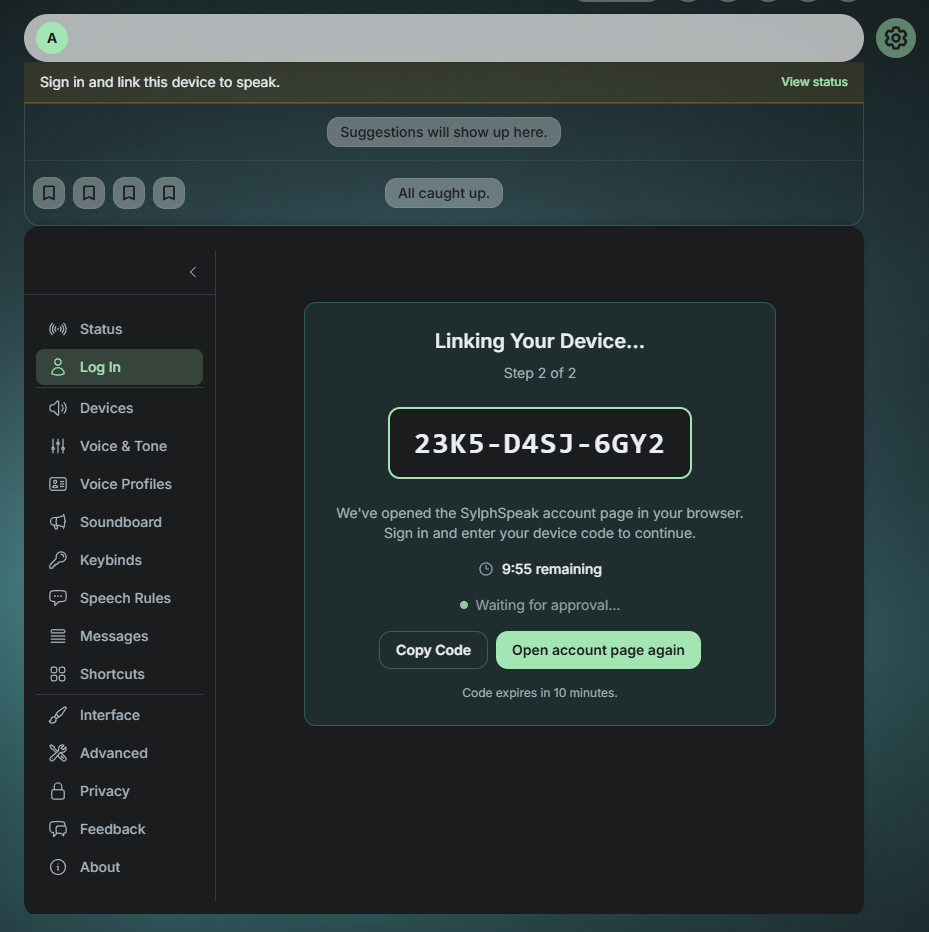
Continue through the device linking flow.
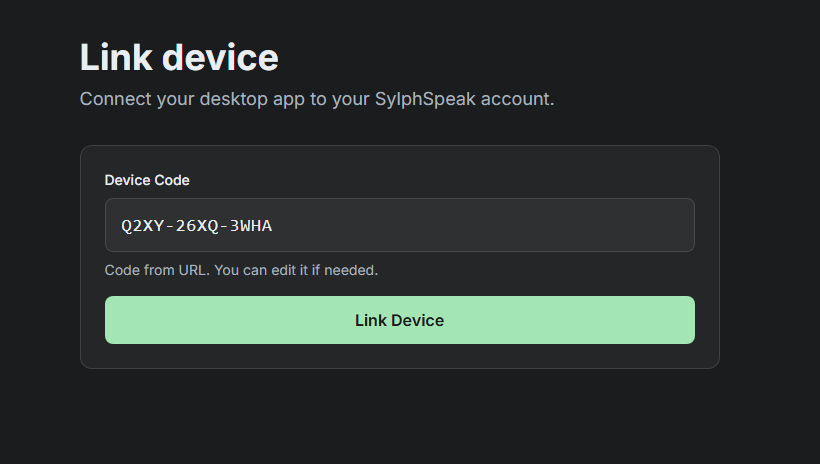
Confirm the device linking request.
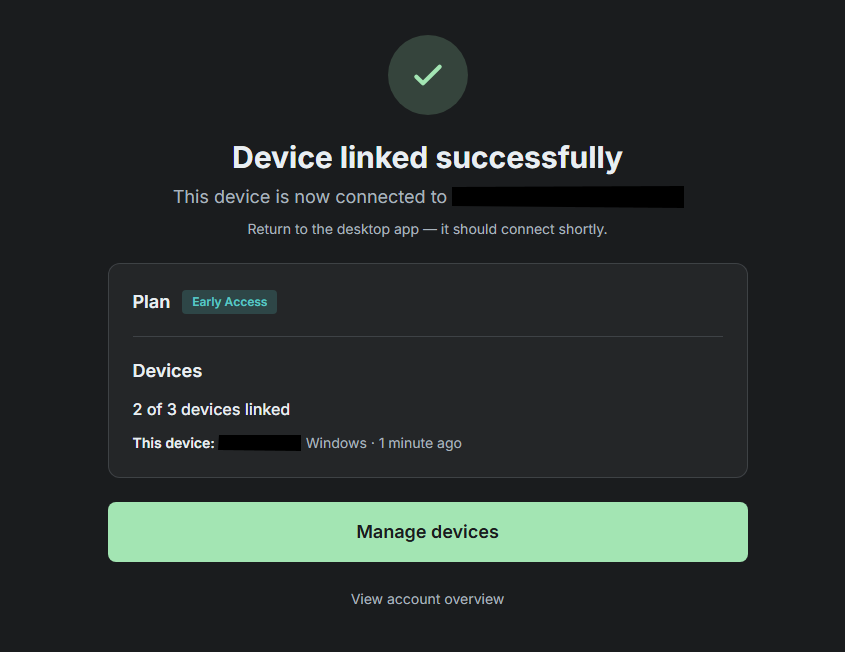
Finish linking your device.
Check that it worked
Section titled “Check that it worked”Your device is linked when SylphSpeak shows that you are signed in or connected to your account. If you return to the main input screen, your voice path is ready for the next setup step.
If it does not work
Section titled “If it does not work”If the device does not link:
- Make sure your browser finished the sign-in step.
- Return to SylphSpeak and check whether the login screen changed.
- Select
Log Inagain if SylphSpeak still shows the login prompt. - Restart SylphSpeak, then try the linking flow again.
Next step
Section titled “Next step”After your device is linked, finish setting up your voice path and send a short test line in SylphSpeak.