Add and use a soundboard item
Create a soundboard item for a phrase you send often, then trigger it quickly when you need it. Soundboard items work like reusable typed messages. When you activate one, SylphSpeak speaks the phrase as if you typed it into the input bar and sent it.
Before you start
Section titled “Before you start”Make sure you have:
- SylphSpeak open
Config mode>Soundboardopen- A paid SylphSpeak account linked to your active device
Create a soundboard item
Section titled “Create a soundboard item”- Open
Config mode. - Go to
Soundboard. - Select
Add Phrase.
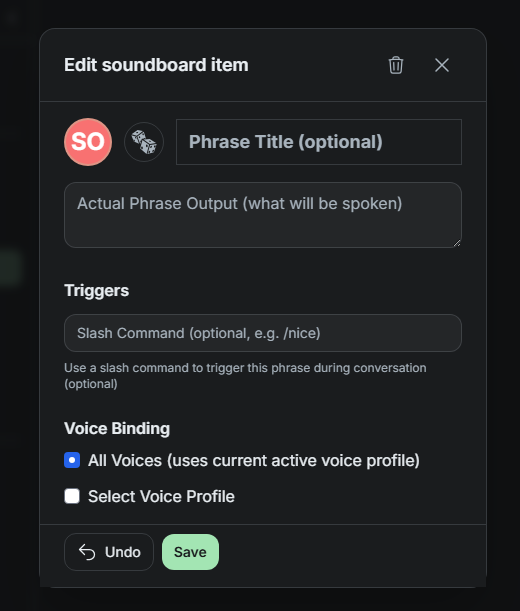
Use the Soundboard item editor to create a reusable phrase.
Add the phrase details
Section titled “Add the phrase details”- Add a title.
- In
Actual phrase output, enter the text you want SylphSpeak to speak. - Save the soundboard item.
The
Actual phrase outputis the spoken message. It works the same way as text you type into the input bar.
Add a slash command trigger
Section titled “Add a slash command trigger”You can add a slash command to trigger the soundboard item from the input bar.
For example, if you set the trigger to /nice, you can type /nice in the input bar and send it. SylphSpeak will use the soundboard item’s phrase output.

Type a slash command in the input bar and hit send to trigger the soundboard item.
Choose a voice binding
Section titled “Choose a voice binding”Under Voice binding, choose how the soundboard item should sound:
- Select
All voicesif you want the phrase to use whichever voice is active when you send it. - Select a specific voice profile if you want the phrase to use the same voice profile every time.
Use a specific voice profile for phrases that should always sound consistent. Use
All voicesfor phrases that should follow your current active voice.
Activate a soundboard item
Section titled “Activate a soundboard item”You can activate a soundboard item in several ways:
- Select the item directly in the
Soundboardtab in config mode. - Type its slash command in the input bar, then send it.
- Create a bubble for the soundboard item, add that bubble to a loadout, then select it from overlay mode.
- Use a bubble keybind after the soundboard item is saved as a bubble and added to the active bubble loadout.
Create a bubble for a soundboard item
Section titled “Create a bubble for a soundboard item”- In the
Soundboardtab, find the soundboard item. - Open the item’s kebab menu.
- Select
Create bubble. - Add the bubble to a loadout.
- Activate that loadout if you want the bubble to appear next to the input bar or use its designated bubble keybind.

Create a bubble from the soundboard item menu.
Check that it worked
Section titled “Check that it worked”Your soundboard item is ready when activating it speaks the phrase output you saved. If you added a slash command, test it from the input bar. If you created a bubble, test it from the active bubble loadout.
Next step
Section titled “Next step”Create one soundboard item for a phrase you use often. If you want faster access, add it to a bubble loadout or assign a keybind to its bubble slot.