Stop SylphSpeak from following your active monitor
Keep SylphSpeak on the same monitor instead of having it move to the display where your most recently used app is active. By default, SylphSpeak opens on the active display. This means it appears on the same monitor as the app you used most recently.
When this applies
Section titled “When this applies”Use this fix if:
- You use more than one monitor
- SylphSpeak keeps opening on a different monitor
- You want SylphSpeak to stay where you placed it
Turn off active display placement
Section titled “Turn off active display placement”- Open
Config mode. - Go to
Interface. - Under
Screen placement, turn offOpen on the active display.
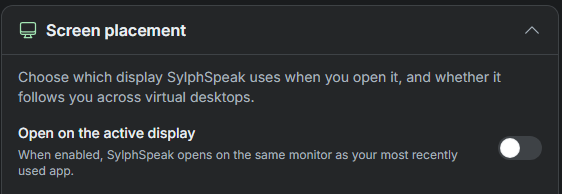
Turn off Open on the active display to stop SylphSpeak from following your active monitor.
Check that it worked
Section titled “Check that it worked”The setting is working when SylphSpeak stays on the monitor where you placed it, even after you switch to apps on another monitor.
If it still moves
Section titled “If it still moves”If SylphSpeak still opens on a different monitor:
- Confirm
Open on the active displayis turned off. - Move SylphSpeak to the monitor where you want it to stay.
- Restart SylphSpeak.
- Check the setting again after restart.