Connect SylphSpeak to Discord
Set Discord to listen to your SylphSpeak virtual mic so your typed text-to-speech lines come through voice chat. When this is set up, anything you send in SylphSpeak can come through Discord voice chat as microphone input.
Before you start
Section titled “Before you start”Make sure you have:
- SylphSpeak open
- Discord open
- Your SylphSpeak virtual mic installed and available as an input device
Open Discord voice settings
Section titled “Open Discord voice settings”- In Discord, select the
User Settingscog in the bottom-left corner.

Select the cog icon in the bottom-left corner.
- In the left-hand settings menu, select
Voice & Video.
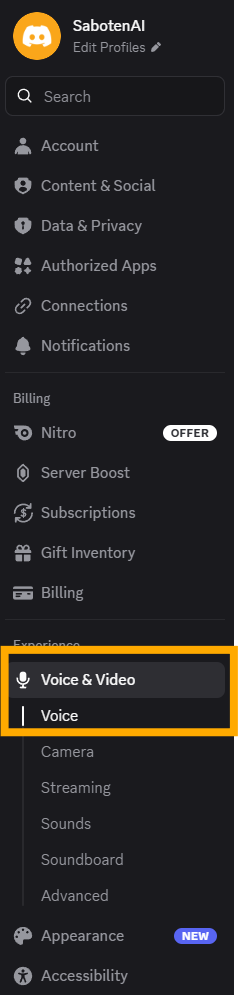
Open Voice & Video settings.
Select your SylphSpeak virtual mic
Section titled “Select your SylphSpeak virtual mic”- Under
Microphone, open the microphone menu. - Select the device that represents your SylphSpeak virtual mic.
- If you are not sure which one to pick, use Find your SylphSpeak virtual mic name before continuing.
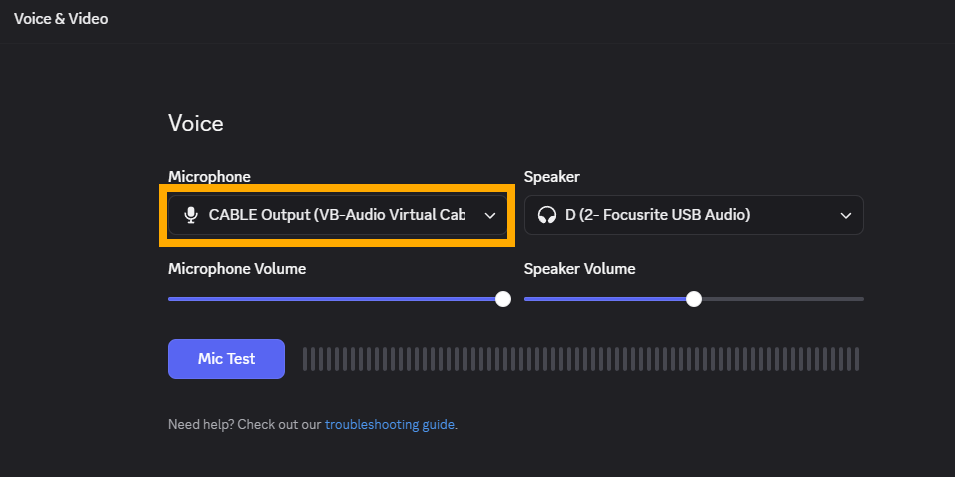
Change Microphone to your virtual mic.
Set your microphone volume
Section titled “Set your microphone volume”Make sure the microphone volume is high enough for Discord to hear the virtual mic.
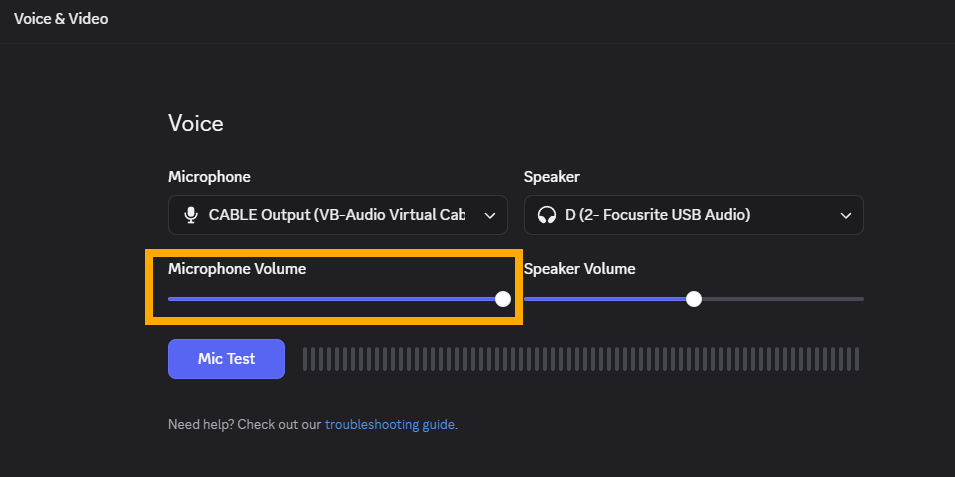
Make sure microphone volume is at an audible level.
Choose an audio processing mode
Section titled “Choose an audio processing mode”In Discord voice settings, choose Studio or another mode with no special audio processing.
This helps keep SylphSpeak audio from sounding like the signal is cutting in and out.
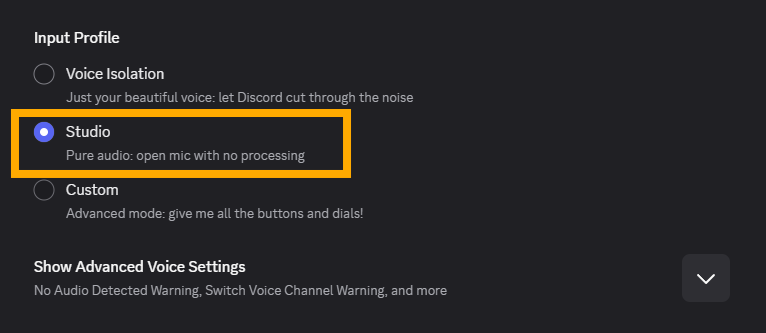
Select Studio or another mode without special audio processing.
Test your Discord input
Section titled “Test your Discord input”Use Discord’s built-in mic test first. It is better than joining a voice channel for setup because you can hear the test yourself. In a voice channel, only someone else can confirm whether they heard you.
- In Discord, stay in
Voice & Video. - Under
Voice, press the mic test button. - In SylphSpeak, turn off your listening device before you send a test line.
- This prevents the test from echoing back through SylphSpeak while Discord is playing the mic test audio.
- In SylphSpeak, type this test line:
SylphSpeak test — can you hear me? - Send it.
- Watch Discord’s input meter or mic test playback to confirm Discord receives the line.
- Listen to the audio to confirm it sounds correct.
- Under
Voice, make sureSpeakeris set to the same device you are listening through. If Discord plays the mic test through a different speaker or headset, you will not hear it.
- Under

Make sure your mic button is unmuted.
Check that it worked
Section titled “Check that it worked”Your voice path is ready when Discord’s mic test plays back the SylphSpeak test line. If you test in a call instead, ask someone else to confirm they heard it.
If it does not work
Section titled “If it does not work”Try these checks in order:
- Re-check that Discord’s
Input Deviceis set to the SylphSpeak virtual mic. - Make sure SylphSpeak is sending audio to the same virtual mic you selected in Discord. If the names do not match, check Find your SylphSpeak virtual mic name.
- Make sure your Discord mic button is unmuted.
- Check whether you are server-muted or deafened.
- Raise the microphone volume in Discord.
- Switch to
Studioor another mode without special audio processing. - If the audio crackles, cuts in and out, or sounds distorted, check Set up virtual mic format.
- Leave and rejoin the voice channel, then test again.
- Close and reopen Discord.
Next step
Section titled “Next step”After Discord can hear SylphSpeak, try a short real message in your voice channel. Type at your pace, send the line, and return to the room.