Enable real mic passthrough in SylphSpeak
Enable real mic passthrough so you can speak out loud and send SylphSpeak messages through the same virtual mic. Use real mic passthrough when you do not want to keep switching a third-party app between your real microphone and your SylphSpeak virtual mic.
Before you start
Section titled “Before you start”Make sure you have:
- SylphSpeak open
Config mode>Devicesopen- A paid SylphSpeak account linked to your active device
- Your real microphone connected
- Your third-party app set to use your SylphSpeak virtual mic
Understand real mic passthrough
Section titled “Understand real mic passthrough”Normally, a third-party app can listen to either your real mic or your SylphSpeak virtual mic. Real mic passthrough lets your real mic pass through SylphSpeak’s virtual mic. This means you can set the third-party app to the SylphSpeak virtual mic once, then use both:
- Your real spoken voice
- SylphSpeak text-to-speech messages You do not need to change the third-party app’s input device each time you switch between speaking and typing.
Choose your real mic
Section titled “Choose your real mic”- Open
Config mode. - Go to
Devices. - Under
Virtual mic, turnEnable real mic?on. - Select your real microphone device.

Turn on real mic passthrough, then choose your real microphone.
Enable real mic for a route
Section titled “Enable real mic for a route”After you choose your real mic, turn real mic passthrough on for the routes that should use it.
- Stay in
Config mode>Devices. - Under
Virtual mic, find the route you want to use. - Turn real mic on for that route.
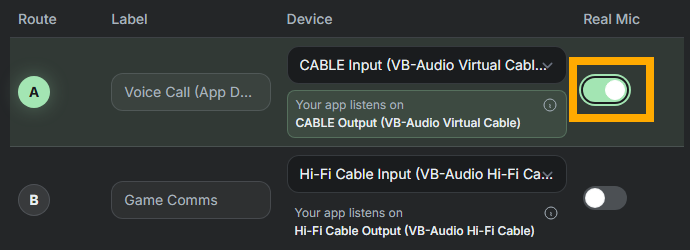
Real mic passthrough uses a two-step setup for extra control.
This two-step setup helps keep real mic audio hidden unless you intentionally enable it for a route.
Use a route with real mic enabled
Section titled “Use a route with real mic enabled”Make sure the active route is a route where real mic passthrough is enabled.

Use a route with real mic passthrough enabled.
If you switch to a route where real mic passthrough is off, your real mic will not pass through that route.
Select the SylphSpeak virtual mic in your app
Section titled “Select the SylphSpeak virtual mic in your app”In your third-party app, choose the mic name that matches Your app listens on.
Do not choose your real mic in the third-party app. The app should listen to the SylphSpeak virtual mic, and SylphSpeak will pass your real mic through that virtual mic when passthrough is enabled.
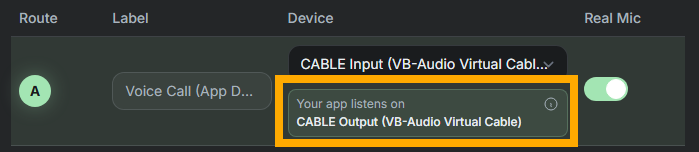
Your third-party app should use the virtual mic name, not your real mic name.
Check that it worked
Section titled “Check that it worked”Real mic passthrough is working when your third-party app receives your real mic through the SylphSpeak virtual mic. To test:
- In SylphSpeak, select a route where real mic passthrough is enabled.
- In your third-party app, select the mic that matches
Your app listens on. - Use the third-party app’s mic test, voice test, or recording preview.
- Speak into your real mic.
- Confirm the app receives your real mic audio.
- Send a short SylphSpeak message and confirm the app receives the text-to-speech audio too.
If it does not work
Section titled “If it does not work”If the third-party app does not receive your real mic:
- Confirm
Enable real mic?is on. - Confirm your physical microphone is selected as the real mic.
- Confirm real mic is enabled for the active route.
- Confirm the third-party app is using the SylphSpeak virtual mic, not your real mic.
- Use the app’s mic test again.
Next step
Section titled “Next step”After real mic passthrough works, send one text-to-speech test message and one spoken test line in the third-party app to confirm both paths are ready.