Set up virtual mic format
Set your virtual mic format to 48,000 Hz so SylphSpeak audio is less likely to crackle, cut in and out, sound scratchy, or sound distorted.
Before you start
Section titled “Before you start”Make sure you have:
- SylphSpeak open
- Your SylphSpeak virtual mic installed
- Access to your Windows or macOS sound settings
Set the format on Windows
Section titled “Set the format on Windows”- Open Windows
Settings. - Go to
System>Sound.
Set the output format on Windows
Section titled “Set the output format on Windows”- Under
Output, find your virtual mic. - Select the more details button, shown as
>.

Open the virtual mic output details.
- Under
Output settings, setFormatto24 bit, 48,000 Hz (Studio Quality).
Set the input format on Windows
Section titled “Set the input format on Windows”- Go back to
System>Sound. - Under
Input, find your virtual mic. - Select the more details button, shown as
>.

Open the virtual mic input details.
- Under
Input settings, setFormatto2 channels, 24 bit, 48,000 Hz (Studio Quality).
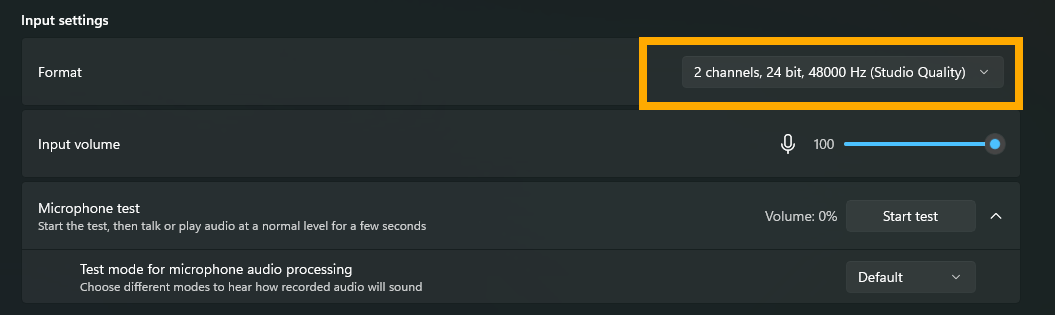
Set the virtual mic input format to 48,000 Hz.
Test the virtual mic on Windows
Section titled “Test the virtual mic on Windows”Use Windows’ microphone test to check whether the audio is fixed.
- Stay on the virtual mic input details page.
- Start the Windows microphone test.
- In SylphSpeak, send a short test line to the same virtual mic.
- Listen for crackling, scratchiness, dropouts, or distortion.
Set the format on macOS
Section titled “Set the format on macOS”- Press
Command+Space. - Search for
Audio MIDI Setup. - Open
Audio MIDI Setup. - If the device list is hidden, choose
Window>Show Audio Devices. - Select the virtual mic.
- Find
Formaton the right. - Set the format to
48,000 Hz.
Check that it worked
Section titled “Check that it worked”Your virtual mic format is ready when your test line plays clearly without crackling, scratchiness, dropouts, or distortion.
Next step
Section titled “Next step”Return to the app or game where the audio sounded wrong, then run its mic test or loopback test again.