Find your SylphSpeak virtual mic name
Find the exact SylphSpeak virtual mic name you should select as the input device in another app. Use this guide when a game, chat app, or streaming app asks you to choose a microphone.
Before you start
Section titled “Before you start”Make sure you have:
- SylphSpeak open
- Your virtual mic installed
- The app you want to connect open
Check the name during onboarding
Section titled “Check the name during onboarding”If you are in SylphSpeak onboarding, use the virtual mic name SylphSpeak recommends on the connection screens.
When your app asks for an Input Device or Microphone, choose that exact device name.
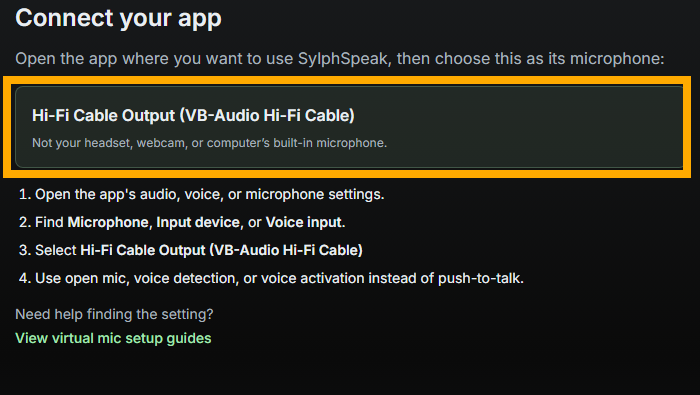
Use the virtual mic name shown during app connection.
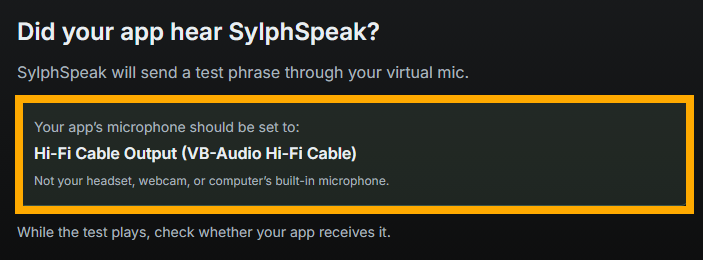
Onboarding can help confirm the connected app heard SylphSpeak.
Check the name in config mode
Section titled “Check the name in config mode”You can also find the virtual mic name from SylphSpeak settings.
- Open
Config mode. - Go to
Devices. - Find
Your app listens on. - Use that exact device name as the
Input DeviceorMicrophonein the app you are connecting.
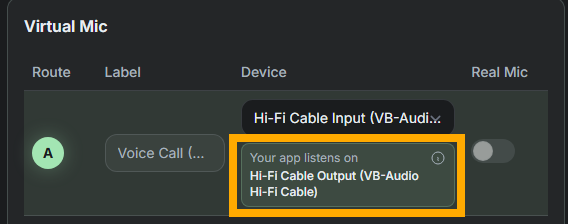
Use the exact name shown under Your app listens on.
Select the mic in your app
Section titled “Select the mic in your app”In the app you are connecting:
- Open the app’s voice, audio, or microphone settings.
- Find the
Input Deviceor microphone setting. - Select the device name that matches
Your app listens onin SylphSpeak. - Save or apply the setting if the app requires it. Do not choose your speaker, headphones, or real mic unless the guide for that setup specifically tells you to.
Check that it worked
Section titled “Check that it worked”After selecting the virtual mic in your app, send a short test line in SylphSpeak, such as:
SylphSpeak check
Your voice path is ready when the app’s voice test, input meter, or recording preview reacts to the SylphSpeak audio.
If the app has a loopback or mic test feature, use that for the clearest confirmation.
You can also ask a friend in a call whether they can hear you clearly, or ask them to record what they hear from you.
If the app does not hear SylphSpeak
Section titled “If the app does not hear SylphSpeak”If the app does not react to your test message:
- Confirm the app’s
Input DeviceorMicrophonematchesYour app listens on. - Confirm you are using the correct route in SylphSpeak.
- Send another short test message.
- If the app has a voice test or input meter, keep it open while testing.
- If the audio sounds scratchy, distorted, or cuts out, check your virtual mic format.
Next step
Section titled “Next step”Return to the app setup guide you were following, then use the exact SylphSpeak virtual mic name when choosing the app’s input device.