Set up SylphSpeak with the onboarding guide
After you install SylphSpeak, the onboarding guide helps you choose a listening device, connect a virtual mic, and send a test line. Use this guide if you are opening SylphSpeak for the first time, or if your voice app cannot hear SylphSpeak yet. Goal: Get SylphSpeak speaking through your voice app by selecting the right listening device + virtual mic, then sending a test line.
What you’ll do
Section titled “What you’ll do”- Open the onboarding guide.
- Choose how you want to use SylphSpeak.
- Select your virtual mic.
- Match that mic in Discord, Zoom, OBS, or another app.
- Send a test line.
- Confirm your voice app can hear SylphSpeak.
Before you start
Section titled “Before you start”You need:
- SylphSpeak installed.
- A SylphSpeak account.
- A voice app to test with, such as Discord, Zoom, OBS, or VRChat.
Step 1: Open SylphSpeak
Section titled “Step 1: Open SylphSpeak”When SylphSpeak opens for the first time, the onboarding guide should appear automatically.
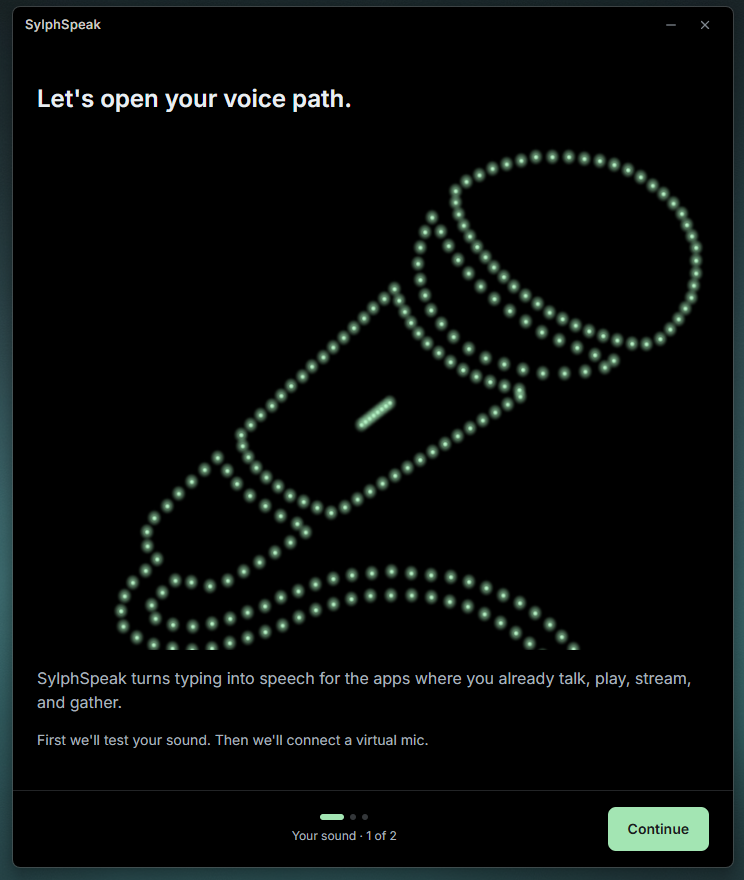
Welcome page.
Select Continue.
If you skipped onboarding before, open it from Cog icon > Status > Voice setup path.
Step 2: Choose where you listen
Section titled “Step 2: Choose where you listen”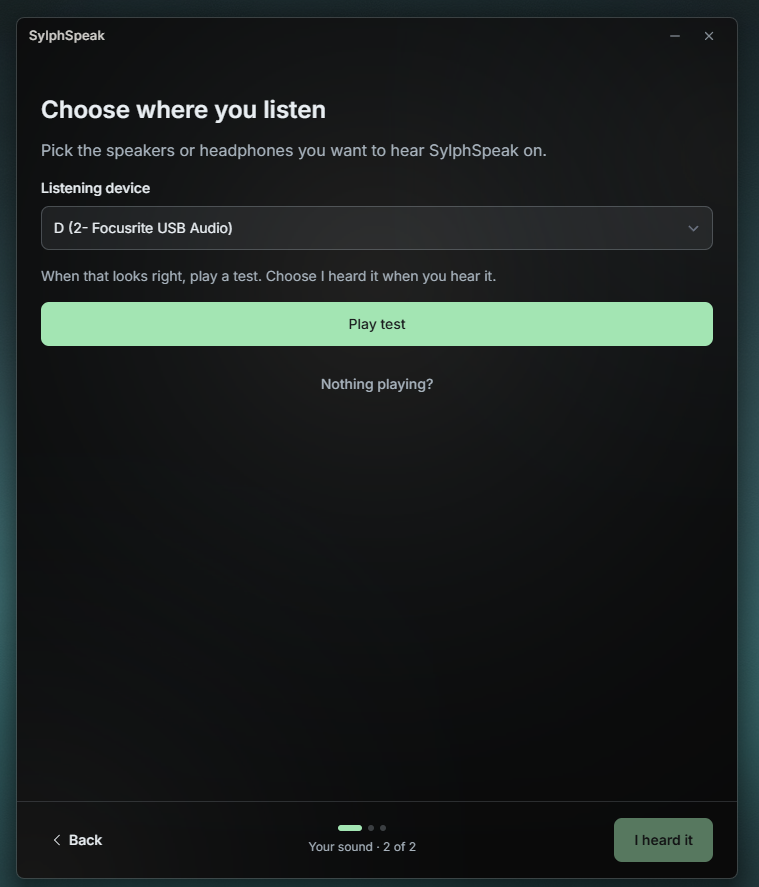
Listening device test page.
Select your listening device from the dropdown menu. This is how you personally can hear your text-to-speech.
Select Play test. You should hear “SylphSpeak is connected. Your typed voice is ready.”
If you heard it, select I heard it.
If not, select Nothing playing? to troubleshoot. Then try again.
Step 3: Install a virtual mic
Section titled “Step 3: Install a virtual mic”If SylphSpeak detected a virtual mic, skip to Step 4: Virtual mic found.
You need a virtual mic to use SylphSpeak. If you do not have one, SylphSpeak recommends installing VB-CABLE by CB-Audio for both Windows and MacOS.
Select Open VB-Audio page and click the orange download button for your operating system. Install VB-CABLE and restart your computer.
For more options by OS and route count, see Pick and install a virtual mic for SylphSpeak.
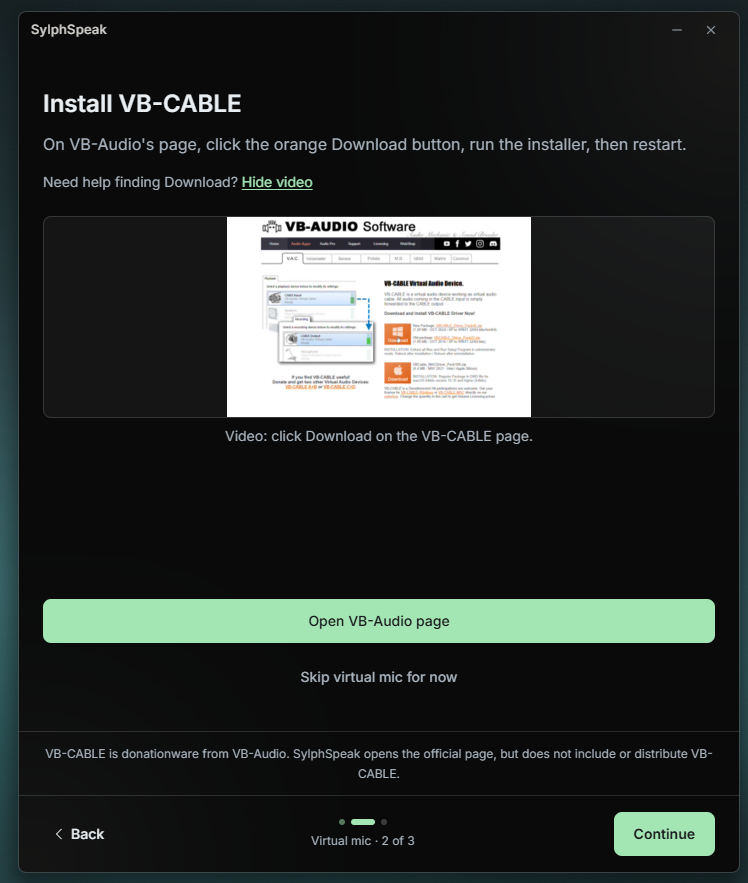
Install virtual mic page.
If you have not restarted yet, select Restart now. If you already restarted, open SylphSpeak and select Check for mic.
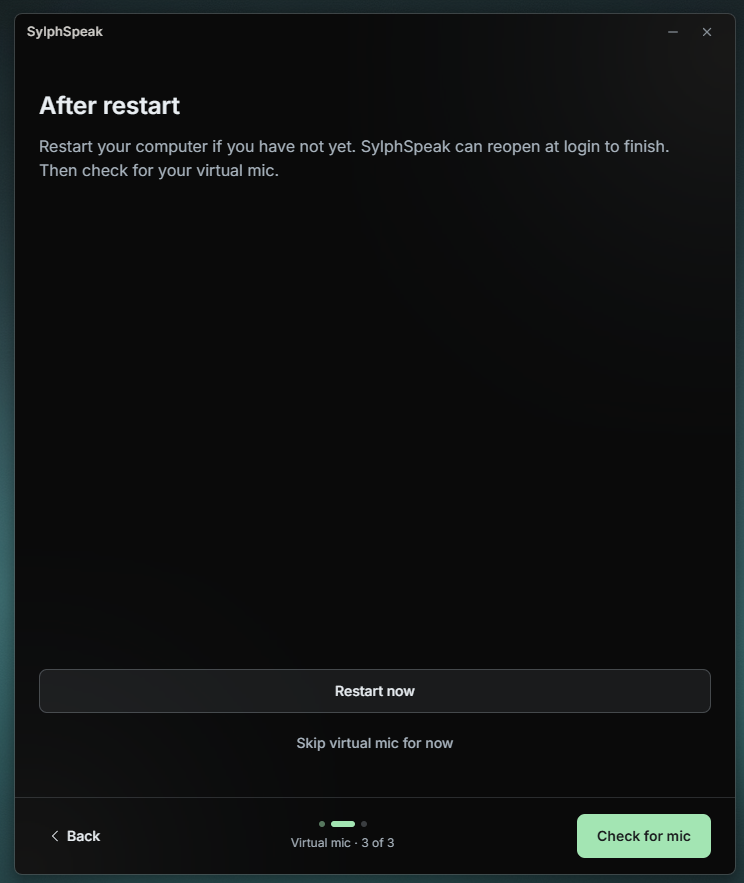
Restart after virtual mic installation page.
Step 4: Virtual mic found
Section titled “Step 4: Virtual mic found”SylphSpeak automatically selects VB-CABLE. If you have more than one virtual mic, select your favorite. SylphSpeak sends a quiet audio test to verify your virtual mic is working. You won’t hear anything.
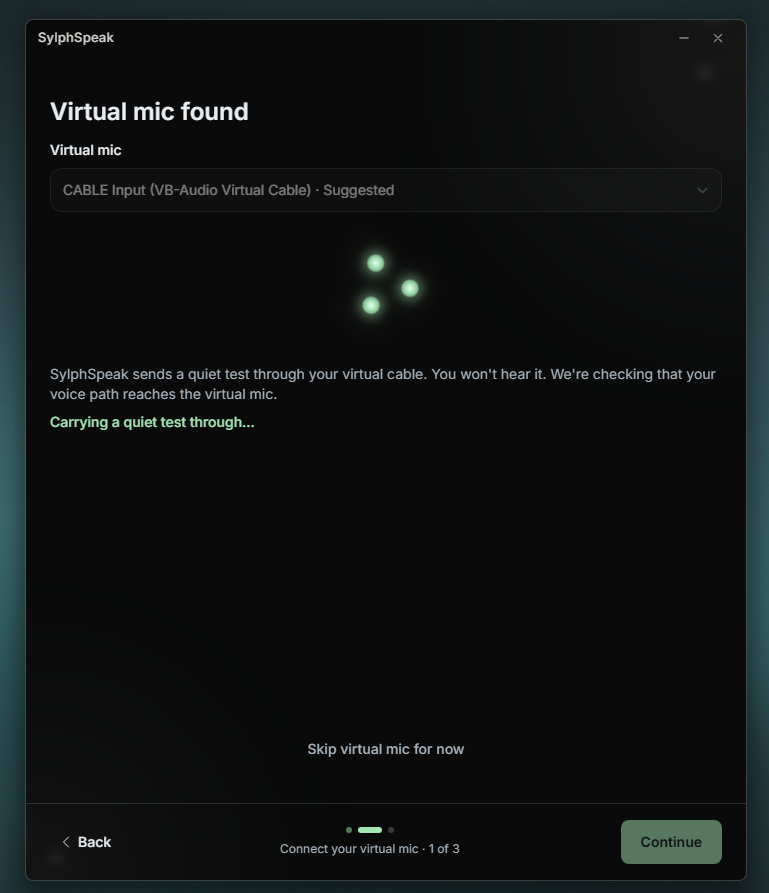
Virtual mic test page.
A successful verification shows a green checkmark symbol with text saying Your voice path is connected. Select Continue.
If the test failed, select Skip virtual mic for now, and contact support.
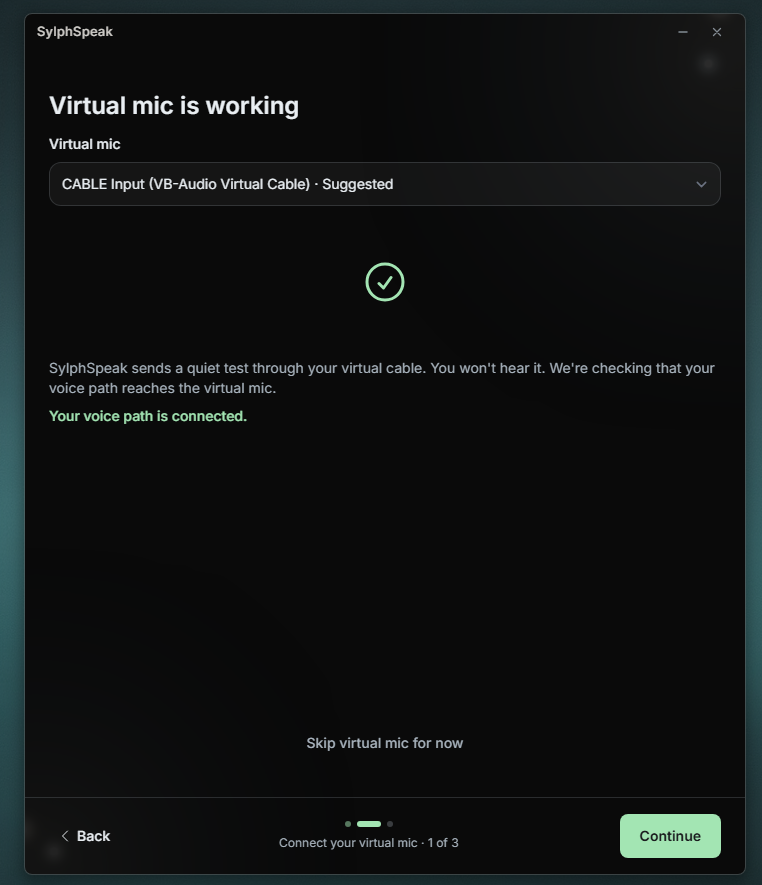
Virtual mic test page success.
Step 5: Connect your app
Section titled “Step 5: Connect your app”Where do I change my mic input in Discord, Zoom, OBS, or VRChat?
Section titled “Where do I change my mic input in Discord, Zoom, OBS, or VRChat?”The green box shows the name of the (virtual) microphone you should connect in your third-party app.
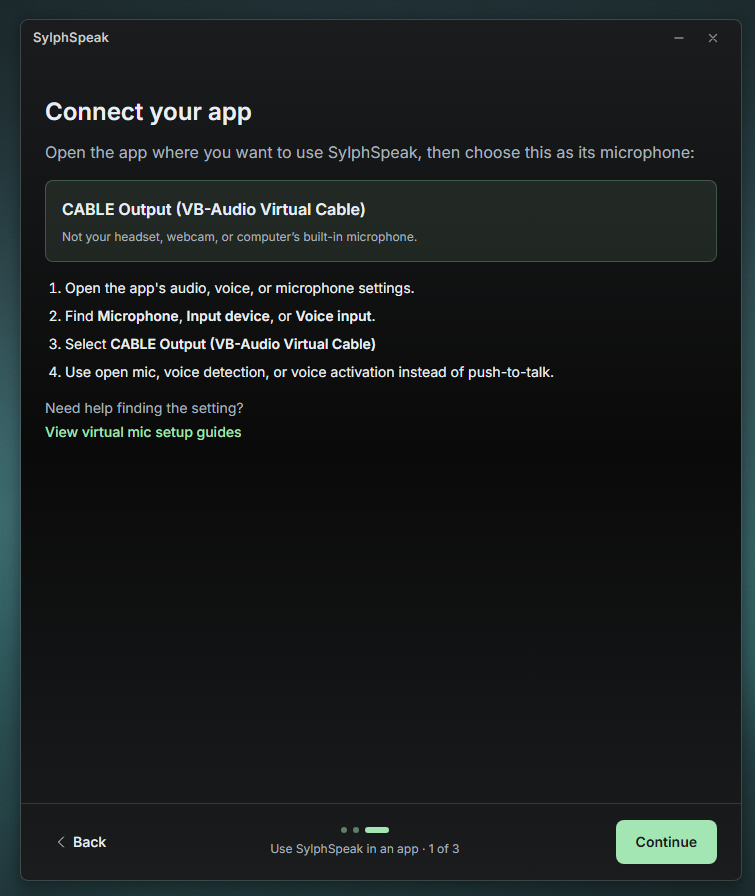
Connect your app guide page.
General help is provided. If you need more help, view virtual mic setup guides.
Select Continue.
Step 6: Send a test
Section titled “Step 6: Send a test”How do I know the test worked?
Section titled “How do I know the test worked?”Double-check that your listening device is correct. Turn off Hear the test locally if you do not want to hear the test audio. SylphSpeak recommends turning it off and listening in your voice app instead.
Select Send test.
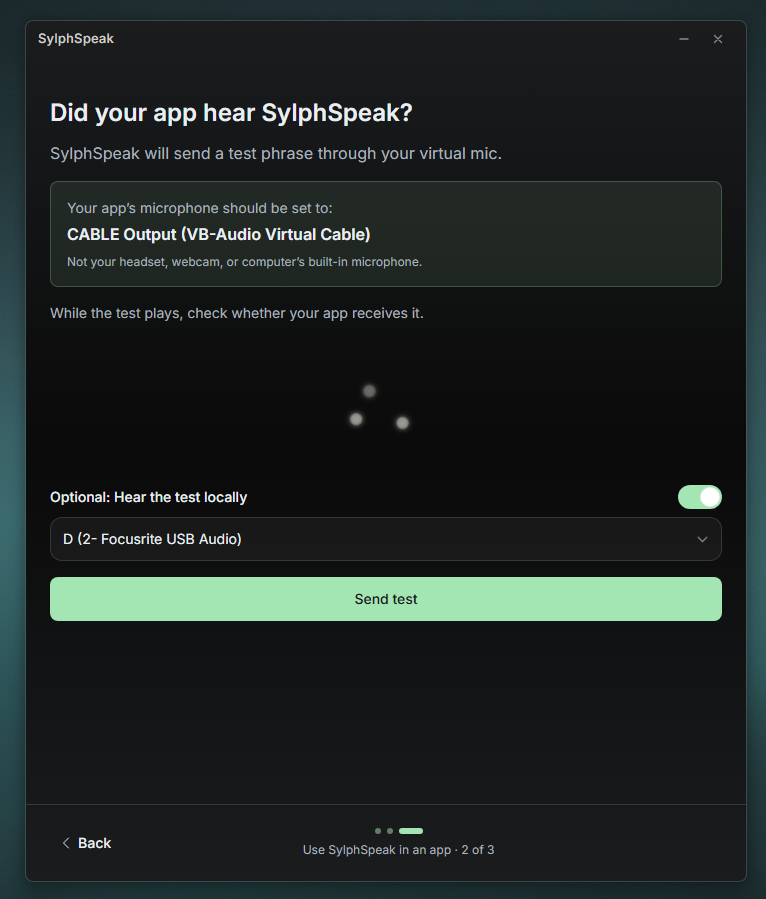
App connection test page.
If you left your listening device toggle on or enabled mic testing on your third party app, you should hear “Testing SylphSpeak audio. Thank you for your patience.”
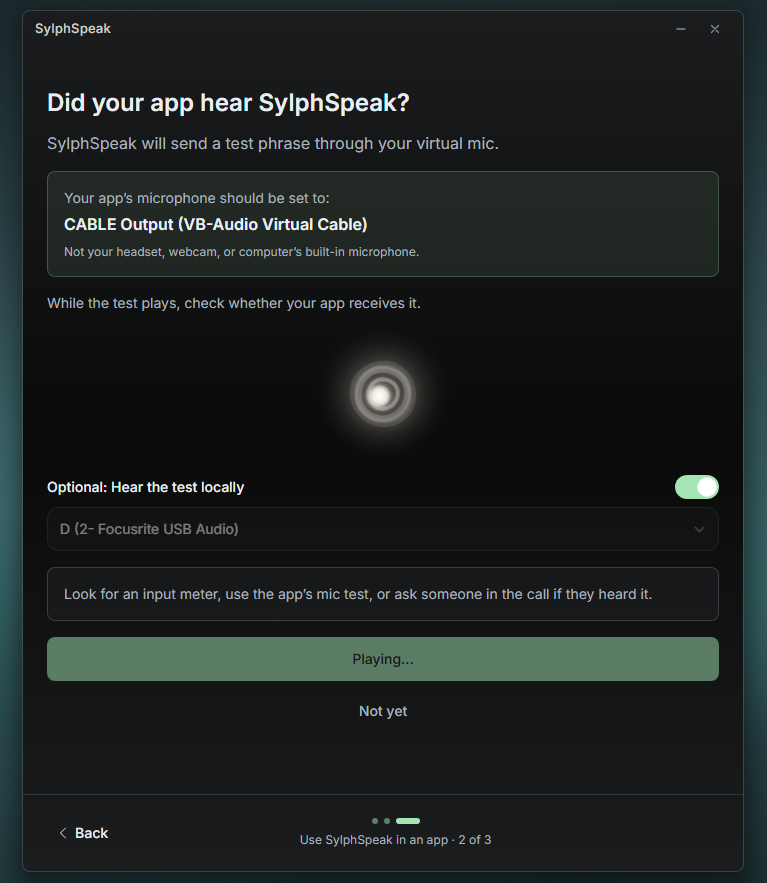
App connection test page playing.
Depending on the app, you might not be able to hear it. Depending on the app, there might be a microphone sound check with a meter showing audio passed through. Otherwise, another person can confirm they heard you in the app. Check the docs for specific third party app setup guides. Also consult your specific app’s documentation and help desk.
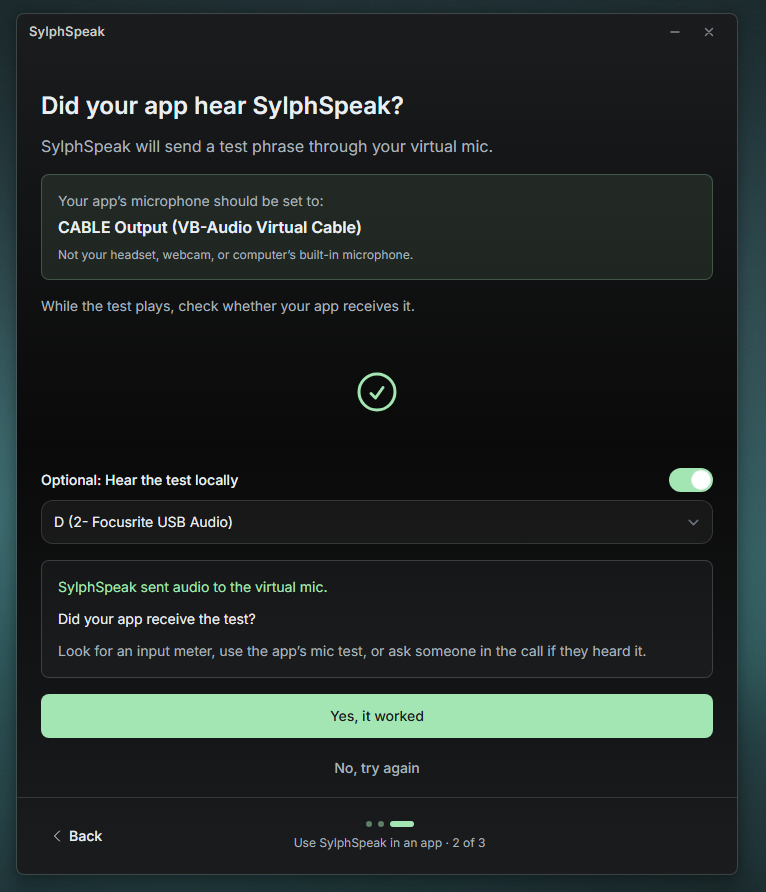
App connection test page success.
Select Yes, it worked to continue.
Step 7: Sign in and link this computer
Section titled “Step 7: Sign in and link this computer”If this is your first time opening SylphSpeak, you’ll be asked to link this computer.
Your browser will automatically open the website to link your device. Select Open account page again if it did not.
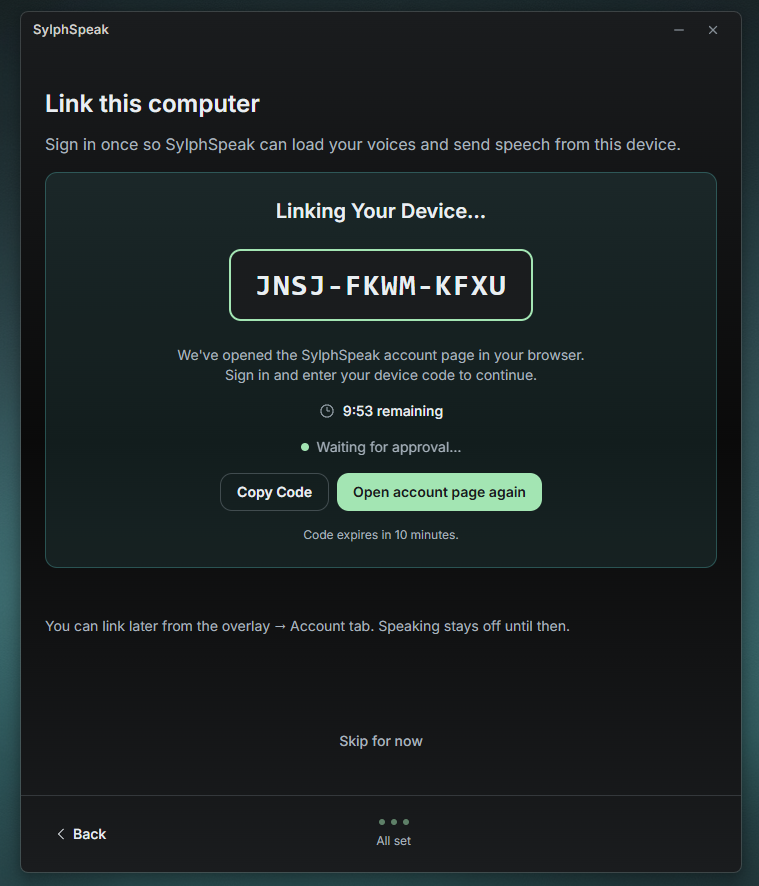
Device link page.
Follow the sign in prompt if you have not logged in yet.
Make sure the device code is correct. Select Link Device.
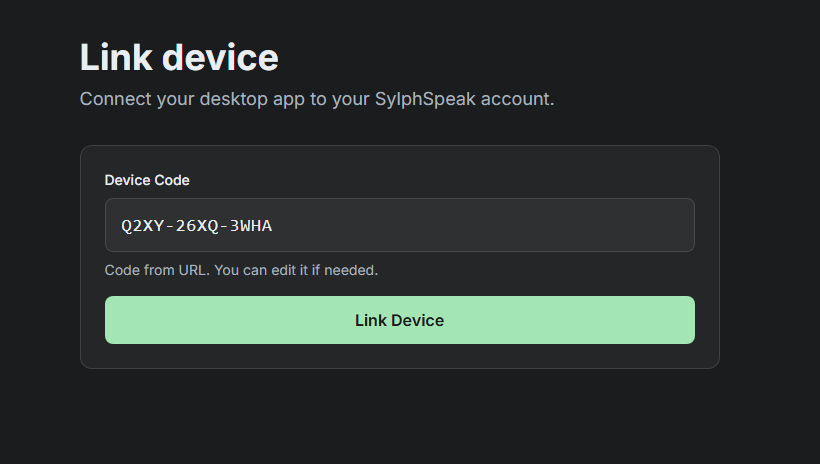
Website link device.
Pro plan allows 3 device links while Ultra plan allows 5. When you see Device linked successfully and the green checkmark, return to the SylphSpeak app. If this is your first time, skip to Step 8: Your voice path is ready.
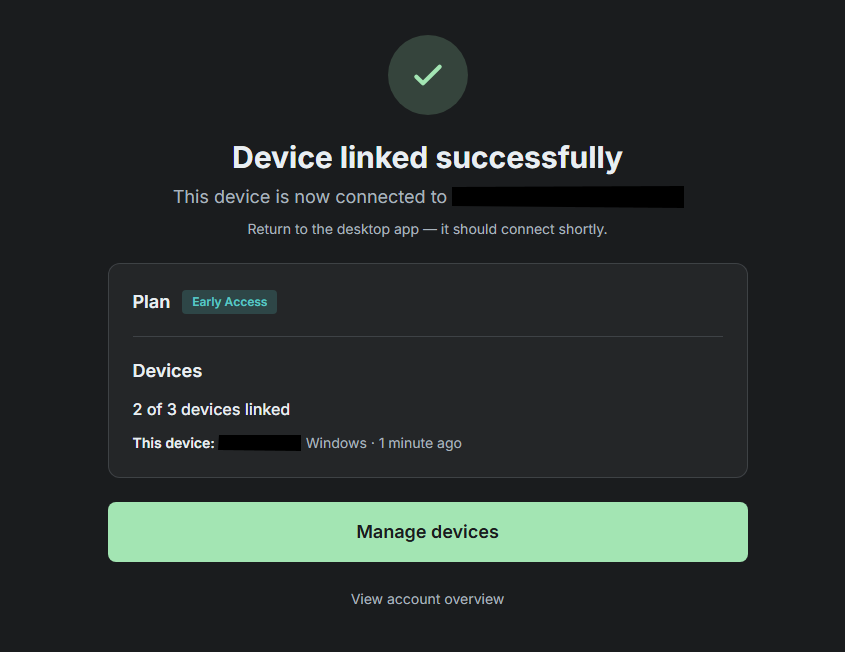
Website link device success.
If this is not the first device you linked, you’ll be asked to select Make this computer active. Pro plan can only have one active device at a time. Ultra plan can have two active devices at a time.
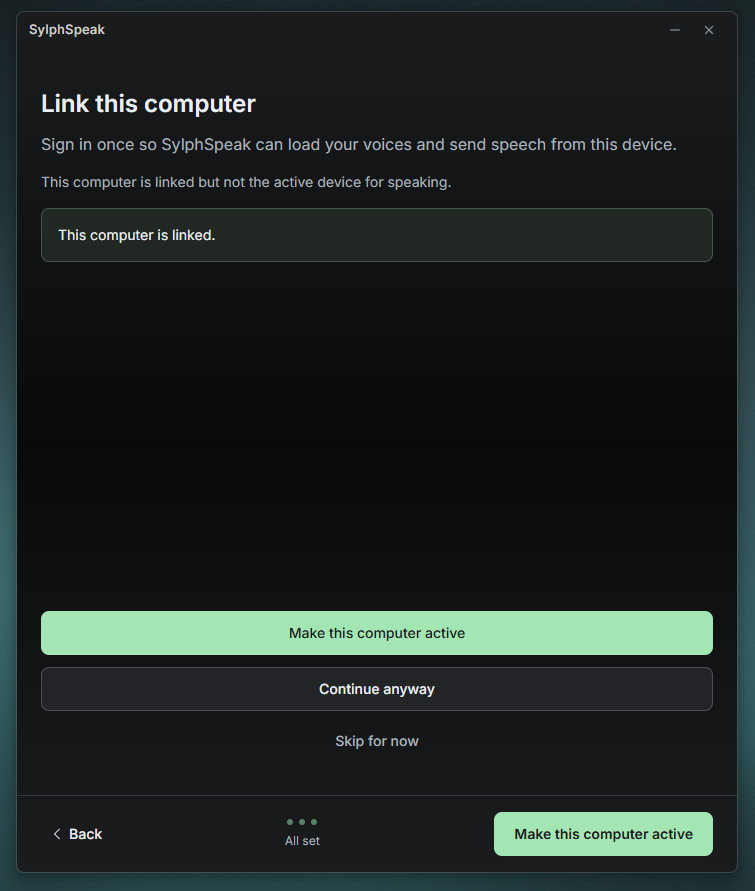
Active device page.
Step 8: Your voice path is ready
Section titled “Step 8: Your voice path is ready”Congratulations — your audio is set up. Select Choose your voice to set how you will sound. Or select Try it now to start typing and speaking.
Optionally, advanced users can select Set up Route B.
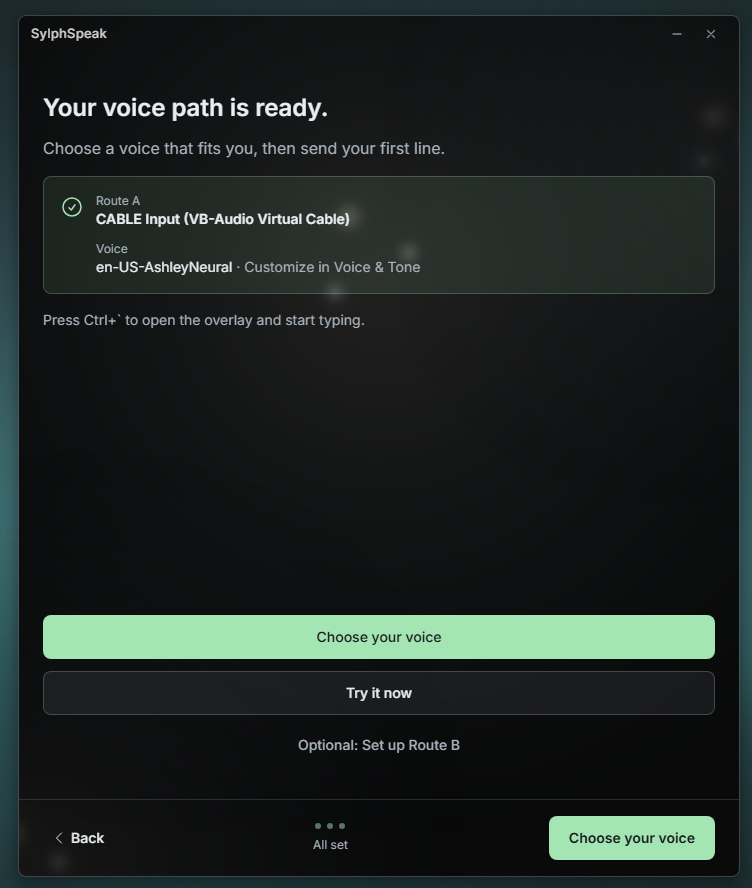
Onboarding complete page.
If the overlay does not show up
Section titled “If the overlay does not show up”Try these checks:
- Press your overlay keybind to summon SylphSpeak.
- Open the system tray, select the SylphSpeak icon (Windows: right-click), then select
Toggle Input Bar. - If it still does not appear, restart SylphSpeak.