Open config mode in SylphSpeak
Open config mode when you want to tune SylphSpeak settings, then return to overlay mode when you want the compact typing view.
Before you start
Section titled “Before you start”Make sure SylphSpeak is open.
Understand overlay mode and config mode
Section titled “Understand overlay mode and config mode”SylphSpeak starts in overlay mode by default. In overlay mode, the config panel is collapsed so you can focus on quickly sending messages while SylphSpeak gets out of the way. Config mode opens the config panel. Use it when you want to log in, edit voices, change devices, adjust the interface, troubleshoot messages, or access other SylphSpeak settings.
Open config mode
Section titled “Open config mode”To enter config mode, select the settings cog button to the right of the input bar.

From overlay mode, select the cog button to enter config mode.
When config mode opens, the config panel appears.
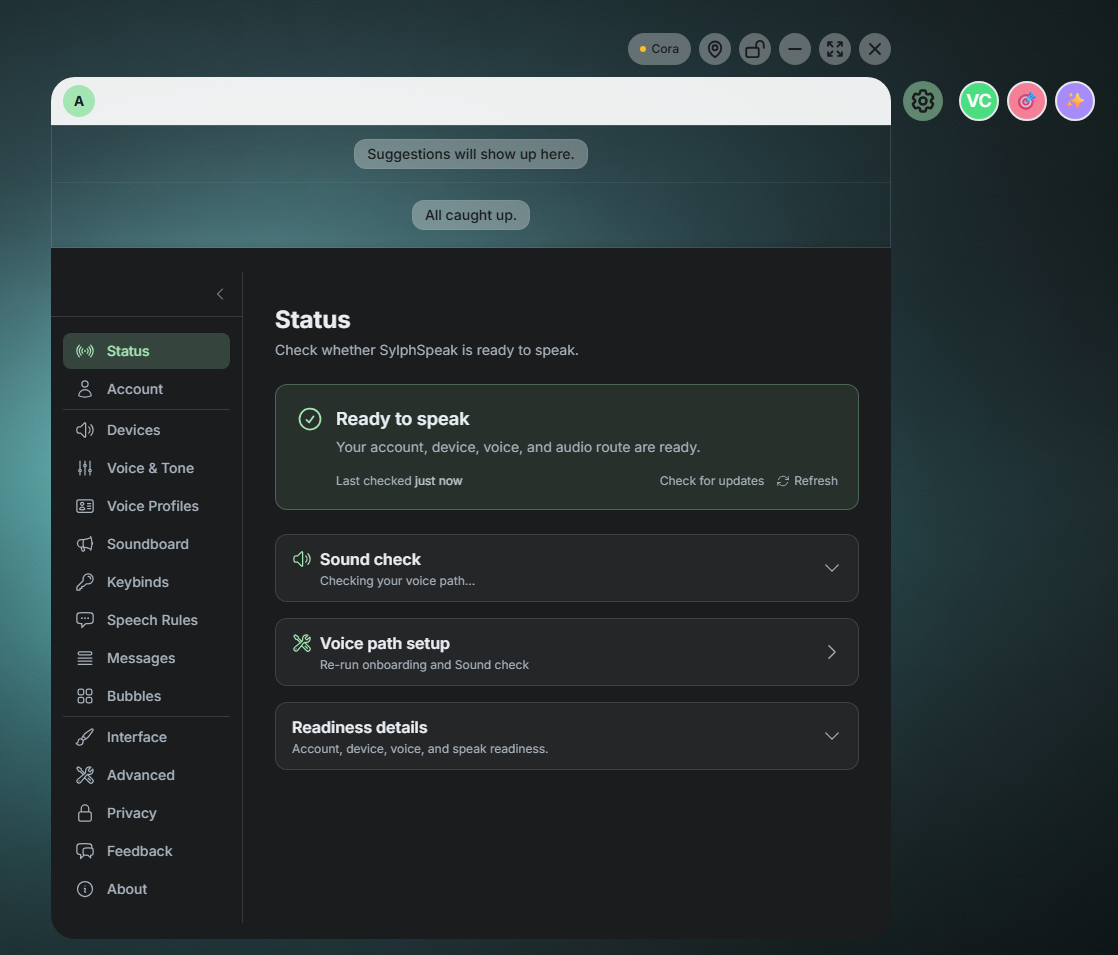
Config mode shows the config panel.
Use SylphSpeak while config mode is open
Section titled “Use SylphSpeak while config mode is open”You can still send messages in config mode. This is useful when you want to test voices, switch voice profiles often, adjust devices, troubleshoot messages, or select soundboard cards. Most overlay mode features still work in config mode. The main exception is after-send hide behavior, because the config panel stays open while you are configuring SylphSpeak. For details, see After send.
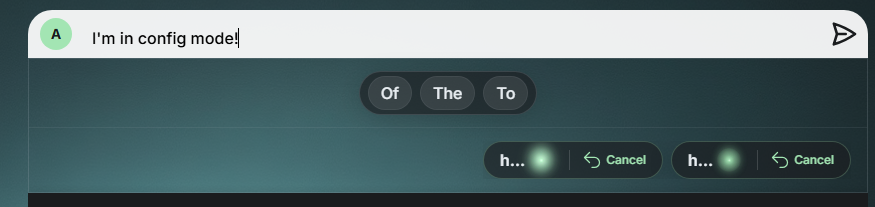
You can continue to send messages from config mode.
Collapse the config menu
Section titled “Collapse the config menu”If you want more space for the current config tab, hide the left navigation menu by selecting the arrow.
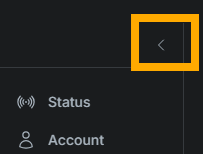
Select the arrow to collapse the left navigation menu.
To bring the menu back, select the arrow again.
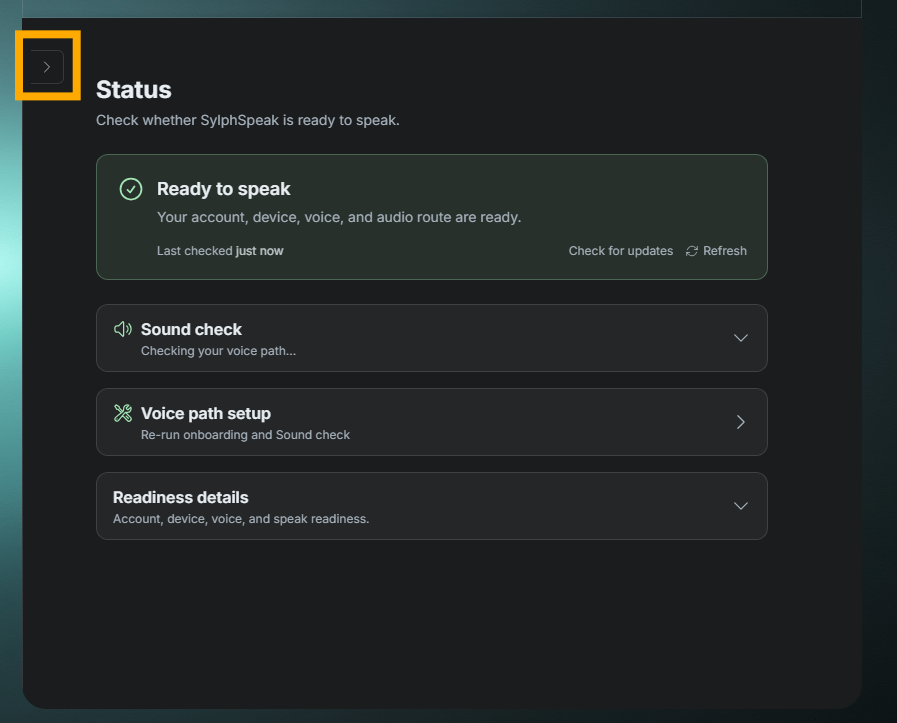
Select the arrow again to show the menu.
Auto-collapse the config menu
Section titled “Auto-collapse the config menu”If you want the left menu to collapse automatically after you select a tab, turn on auto-collapse.
- Go to
Config mode>Interface. - Under
Config panel behavior, turn onAuto-collapse sidebar on tab selection.
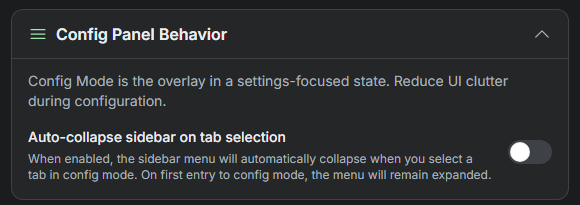
Turn on auto-collapse if you want more room after selecting a config tab.
Check that it worked
Section titled “Check that it worked”You are in config mode when the config panel is open. You are back in overlay mode when the config panel is collapsed and only the compact typing view remains.
Next step
Section titled “Next step”Use config mode to adjust the setting you need, then return to overlay mode when you are ready to keep using SylphSpeak in its compact view.