Connect SylphSpeak to Zoom
Connect SylphSpeak to Zoom so Zoom receives SylphSpeak text-to-speech audio through your virtual mic. Use this guide when you want Zoom participants to hear messages you type in SylphSpeak.
Before you start
Section titled “Before you start”Make sure you have:
- SylphSpeak open
- Zoom installed and open
- Your SylphSpeak virtual mic installed
- A paid SylphSpeak account linked to your active device
Open Zoom audio settings
Section titled “Open Zoom audio settings”- Open Zoom.
- Select the settings cog in the bottom-left corner.

Open Zoom settings from the cog button.
- In the left navigation, select
Audio.
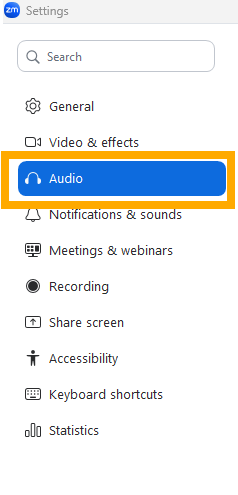
Select Audio to open microphone settings.
Select your SylphSpeak virtual mic
Section titled “Select your SylphSpeak virtual mic”- Under
Microphone, open the microphone dropdown. - Select the device name that matches your SylphSpeak virtual mic.
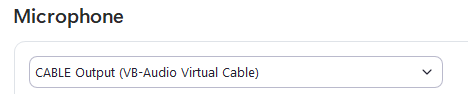
Choose your SylphSpeak virtual mic from the Microphone dropdown.
Do not choose your speaker, headphones, or real mic.
Set microphone volume
Section titled “Set microphone volume”Make sure the Input Volume slider is not muted or too low.

Keep input volume high enough for Zoom to hear SylphSpeak.
Turn off automatic microphone volume
Section titled “Turn off automatic microphone volume”Turn Automatically adjust microphone volume off.

Turn off automatic microphone volume so Zoom does not change SylphSpeak levels.
Choose a microphone mode
Section titled “Choose a microphone mode”Under Microphone modes, choose the setting that sounds best for your virtual mic.
The SylphSpeak team usually finds these settings sufficient:
Noise removalBackground noise suppressionset toAutoIf the audio sounds distorted, clipped, or heavily processed, tryOriginal sound for musicians.
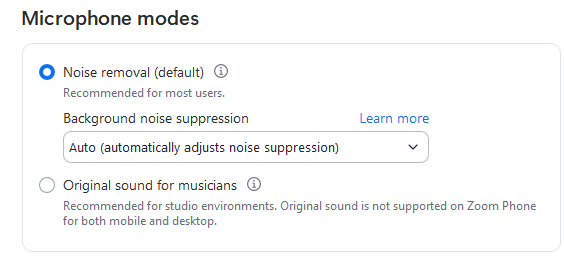
Try different microphone modes if Zoom changes the audio too much.
Test the microphone in Zoom
Section titled “Test the microphone in Zoom”- Under
Microphone, selectTest microphone. - In SylphSpeak, send a short test message.
- Wait for Zoom to play back the recording. Zoom records what it receives, then plays it back. The playback is not real-time.

Use Test microphone to hear what Zoom receives from SylphSpeak.
Check that it worked
Section titled “Check that it worked”Zoom is connected when the microphone test records and plays back your SylphSpeak test message clearly. You can also ask a friend in a Zoom call whether they can hear you clearly, or ask them to record what they hear from you.
If it does not work
Section titled “If it does not work”If Zoom does not hear SylphSpeak:
- Confirm Zoom
Microphoneis set to the device name shown underYour app listens onin SylphSpeak. - Confirm you are using the correct route
- Confirm Zoom
Input Volumeis not muted or too low. - Confirm
Automatically adjust microphone volumeis off. - Send another short SylphSpeak test message while Zoom’s microphone test is recording.
- If the audio sounds scratchy, distorted, or cuts out, check your virtual mic format.
Next step
Section titled “Next step”Join a Zoom meeting and send one short SylphSpeak test message before the conversation starts.