Install SylphSpeak on macOS
Download and install SylphSpeak on your Mac so you can open the app and complete audio onboarding.
Before you start
Section titled “Before you start”Make sure you have:
- A Mac running macOS on Apple Silicon
- A paid SylphSpeak account (Pro or Ultra)
- Permission to install apps on your Mac
Download the macOS installer
Section titled “Download the macOS installer”- Sign in to your SylphSpeak account.
- Go to https://app.sylphspeak.com/account/download
- Select the download button near the top-center of the page.
- SylphSpeak should automatically choose the right installer for your Mac.
- If you see multiple options, choose
Apple Silicon.
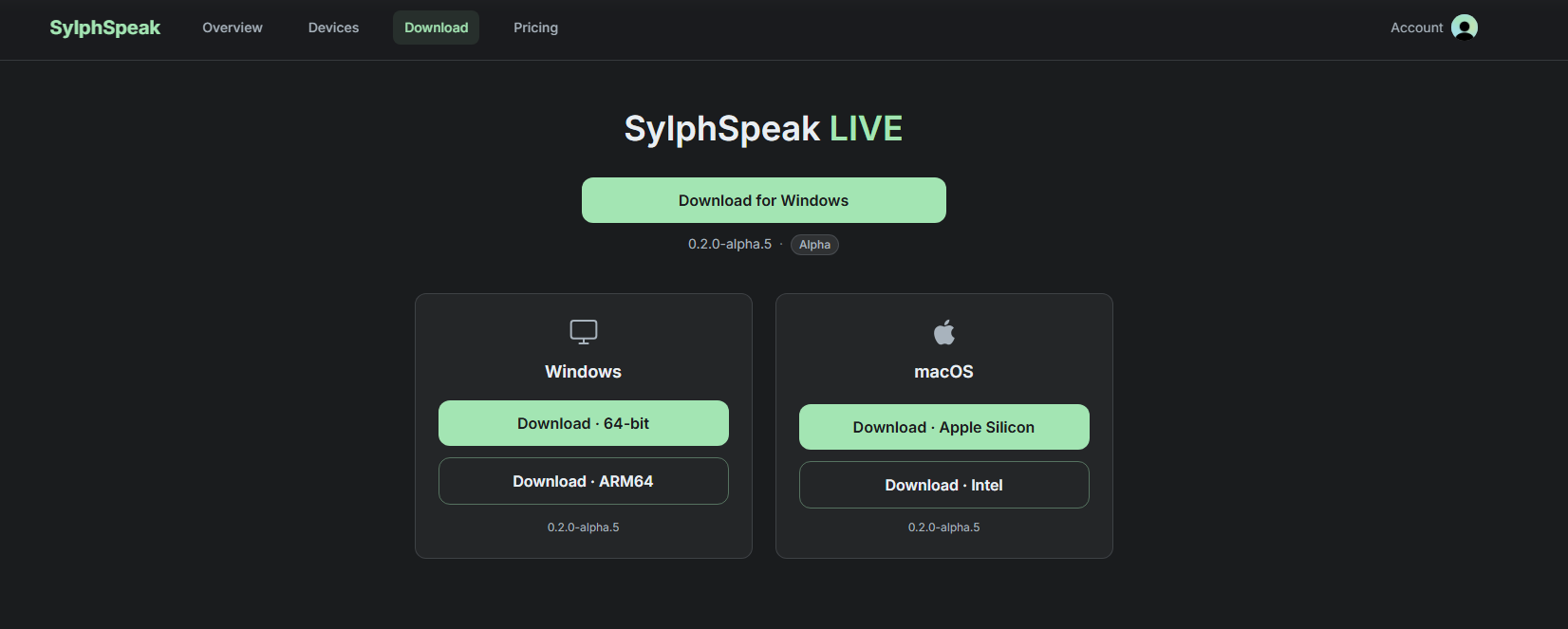
Download the Apple Silicon macOS installer.
Install SylphSpeak
Section titled “Install SylphSpeak”- Open the downloaded file.
- Drag
SylphSpeakinto yourApplicationsfolder. - Open
SylphSpeakfromApplications. - When macOS asks for permissions, select
AlloworYes.- SylphSpeak may ask for microphone access so it can route audio into your voice path.
- If macOS shows a prompt from
com.sylphspeakasking for your macOS user password, enter your password to continue. - Wait for SylphSpeak to open.
Check that it worked
Section titled “Check that it worked”SylphSpeak opens successfully. If this is your first time opening SylphSpeak, the onboarding guide should appear automatically.
If it does not work
Section titled “If it does not work”If SylphSpeak does not open:
- Open
Applications, then openSylphSpeakagain. - If macOS asks for permission again, select
AlloworYes. - Restart your Mac, then open
SylphSpeakagain. - Make sure you downloaded the
Apple Siliconinstaller from your SylphSpeak account page.
Next step
Section titled “Next step”Complete the onboarding flow to set up your audio. Your voice path is ready when SylphSpeak can send a test line into your selected listening device or virtual mic.