Manage your SylphSpeak account
Open your SylphSpeak account settings to manage your profile, sign-in methods, security options, billing, and subscription. SylphSpeak uses Clerk for account services, including login, authentication, and billing. You may see Clerk account screens when managing your SylphSpeak account.
Before you start
Section titled “Before you start”Make sure you have:
- Access to app.sylphspeak.com
- The email address or social login you use for SylphSpeak
Open account settings
Section titled “Open account settings”- Go to app.sylphspeak.com.
- Select
Accountin the top-right corner.

Open account options from the Account button.
From the account menu, you can select Manage account or Sign out.
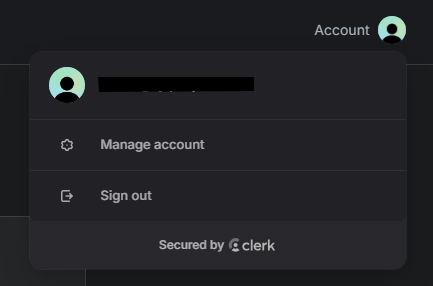
Select Manage account to open account settings.
Manage your profile
Section titled “Manage your profile”In Manage account > Profile, you can:
- Connect social sign-in options
- Add or manage email addresses
- Change your profile picture
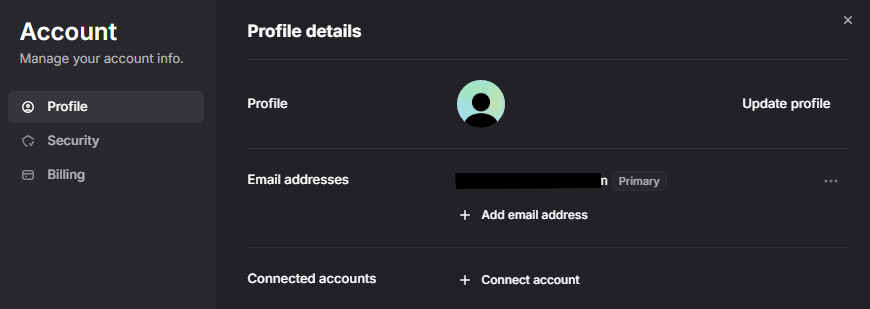
Use Profile settings to manage sign-in methods and profile details.
Manage security settings
Section titled “Manage security settings”In Security, you can manage account security options, including account deletion.
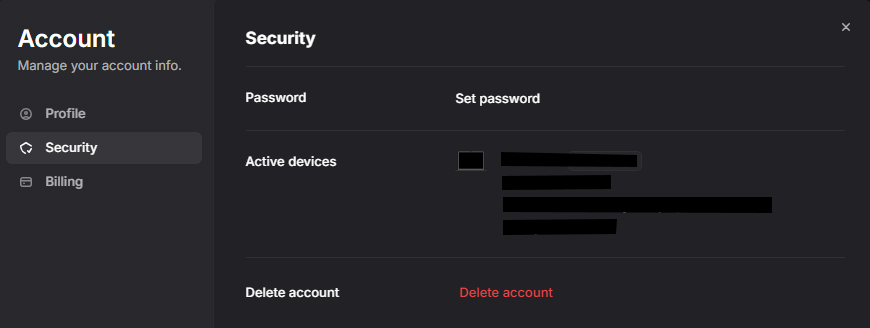
Use Security settings to manage account security options.
Manage billing
Section titled “Manage billing”In Billing, you can review:
- Subscription
- Payment methods
- Statements
- Past payments
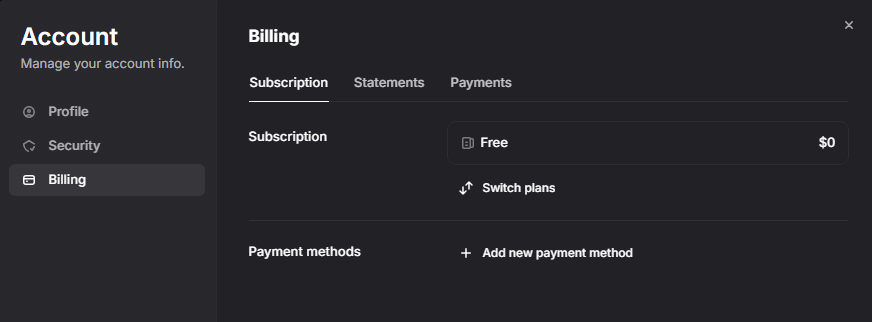
Use Billing settings to review subscription and payment details.
Use this area to confirm your current plan, update payment details, or review billing history.
Switch plans
Section titled “Switch plans”To change your subscription:
- Open
Billing. - Select
Switch plans. - Choose the plan you want.
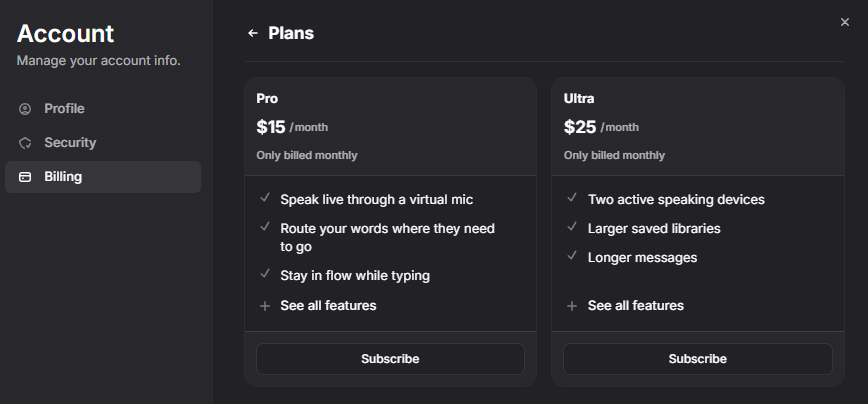
Use Switch plans to change your SylphSpeak subscription.
Subscribe from pricing
Section titled “Subscribe from pricing”You can also choose a plan from the SylphSpeak Pricing page.

Use the Pricing page to choose a SylphSpeak plan.
Check that it worked
Section titled “Check that it worked”Your account settings are open when you can see profile, security, or billing options in the account portal.
For billing changes, confirm the subscription, payment method, or billing history shown in Billing matches what you expected.
Next step
Section titled “Next step”After updating your account or subscription, return to SylphSpeak and confirm you are signed in with the same account.