Fix SylphSpeak turning black
Restore the SylphSpeak window if the overlay turns black. This can happen on Windows when transparency stops working correctly, especially after an AMD graphics driver crash.
When this applies
Section titled “When this applies”Use this fix if:
- You are using Windows
- The SylphSpeak window or overlay turns black
- You use an AMD graphics driver, or the issue started after a graphics driver crash
Run Fix transparency
Section titled “Run Fix transparency”- Open
Config mode. - Go to
Interface. - Under
Troubleshooting, selectFix transparency.
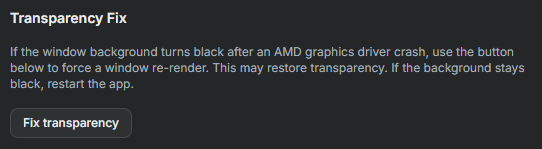
Use Fix transparency to restore the overlay after transparency stops working.
Check that it worked
Section titled “Check that it worked”The issue is fixed when the SylphSpeak window appears normally again instead of turning black.
If it still happens
Section titled “If it still happens”If Fix transparency does not resolve the issue:
- Restart SylphSpeak.
- If restarting SylphSpeak does not work, restart your PC.
- If the issue continues after both restarts, contact SylphSpeak support.
Next step
Section titled “Next step”After the window displays normally, reopen SylphSpeak and confirm the overlay stays visible while you use it.