Change pronunciation in SylphSpeak
Create pronunciation rules for words, names, phrases, or shorthand that SylphSpeak should say differently. Use pronunciation rules when text-to-speech reads something the wrong way, or when you want to type a short abbreviation and have SylphSpeak say a longer phrase.
Before you start
Section titled “Before you start”Make sure you have:
- SylphSpeak open
Config mode>Speech Rulesopen- A paid SylphSpeak account linked to your active device
Add a pronunciation rule
Section titled “Add a pronunciation rule”- In
Config mode, go toSpeech Rules. - Under
Pronunciation, selectAdd Rule.
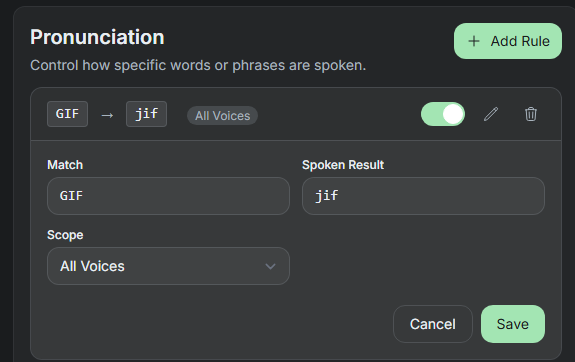
Use the Pronunciation editor to control how SylphSpeak says specific text.
Fill in the rule
Section titled “Fill in the rule”- In
Match, enter the word or phrase you will type into the input bar. - In
Spoken result, enter how you want SylphSpeak to say it. - Choose whether the rule applies to
All voicesor a specific voice profile. - Select
Save. You can toggle a pronunciation rule on or off at any time.
Use pronunciation rules as shorthand
Section titled “Use pronunciation rules as shorthand”Pronunciation rules can also help you type less. Instead of correcting a word’s sound, you can make a short typed phrase expand into a longer spoken result.
For example, you could type an abbreviation in Match, then put the full phrase in Spoken result.

Pronunciation rules can also work as shorthand for phrases you type often.
To create shorthand:
- In
Match, enter the abbreviation or short phrase you want to type. - In
Spoken result, enter what you want SylphSpeak to actually say. - Choose whether the rule applies to
All voicesor a specific voice profile. - Select
Save.
Choose the voice scope
Section titled “Choose the voice scope”Use All voices when the rule should apply no matter which voice is active.
Use a specific voice profile when the rule only makes sense for one voice. This can be helpful if one voice pronounces a word correctly, but another voice needs help.
Check that it worked
Section titled “Check that it worked”Your pronunciation rule is working when you type the Match text into the input bar and SylphSpeak says the Spoken result.
You can also confirm the rule matched in message details:
- Go to
Config mode>Messages. - Select the message you tested.
- Expand
Technical details. - Check
=== Message ===and=== Speech Rules ===to see whether the matching rule was applied.
Next step
Section titled “Next step”Create one rule for a word or phrase SylphSpeak mispronounces. Then send a short test line to confirm it sounds right.