Create a custom safety rule in SylphSpeak
Create a custom safety rule to replace, redact, or block matched text before SylphSpeak speaks a message. Custom safety rules are useful when you want extra protection for words, names, phrases, symbols, or sensitive patterns that are specific to you.
Before you start
Section titled “Before you start”Make sure you have:
- SylphSpeak open
Config mode>Speech Rulesopen- A paid SylphSpeak account linked to your active device
Add a custom safety rule
Section titled “Add a custom safety rule”- In
Config mode, go toSpeech Rules. - Under
Safety & Blocking, selectAdd Rule. - Enter the text or pattern you want SylphSpeak to match.
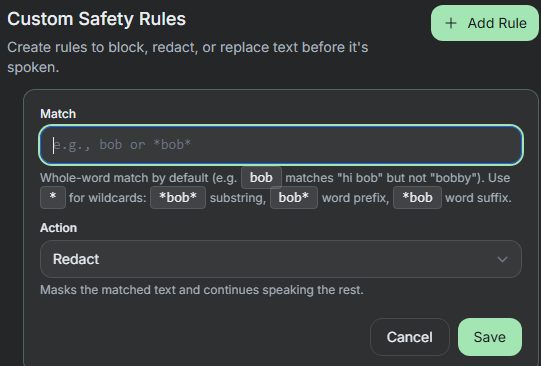
Use the custom safety rule editor to match text before it is spoken.
Choose what happens when text matches
Section titled “Choose what happens when text matches”After you enter the matched text, choose what SylphSpeak should do.
Replace
Section titled “Replace”Use Replace when you want SylphSpeak to say different text instead of the matched text.
- Select
Replace. - Enter the replacement text.
- Select
Save.
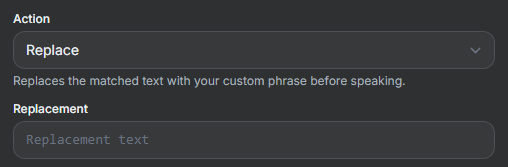
Replace matched text with safer spoken text.
Redact
Section titled “Redact”Use Redact when you want SylphSpeak to mask only the matched text and continue speaking the rest of the message.
Use Block when you want SylphSpeak to cancel the entire message if the matched text appears.
Save and toggle the rule
Section titled “Save and toggle the rule”After you choose the action, select Save.
You can turn the rule on or off at any time.
When to use a custom safety rule
Section titled “When to use a custom safety rule”Create a custom safety rule when you want to reduce the chance of saying something by mistake. Common examples:
- You often mistype a symbol or key. For example, replacing “ with
[redacted]can stop SylphSpeak from saying “backslash”. - You forget someone’s name or pronunciation.
- You stream under a persona and sometimes type your legal name.
- You use the wrong pronouns by accident.
- You use slang that you do not want certain groups to hear.
- You have a habit of swearing and do not want it spoken.
- You do not want to accidentally share your email address, home address, PIN, or password.
Check that it worked
Section titled “Check that it worked”Send test messages in different combinations and voices to confirm the rule works the way you expect. You can also confirm the rule matched in message details:
- Go to
Config mode>Messages. - Select the message you tested.
- Expand
Technical details. - Check
=== Message ===and=== Speech Rules ===to see whether the matching rule was applied.
If the result is not what you expected
Section titled “If the result is not what you expected”If the rule does not match, try a broader wildcard pattern. If the rule matches too often, make the pattern more specific, or turn the rule off until you can adjust it.
Next step
Section titled “Next step”Create one custom safety rule, send a short test message, then check message details to confirm the rule was applied.