Connect SylphSpeak to VALORANT
Set VALORANT to listen to your SylphSpeak virtual mic so your typed text-to-speech lines come through in-game voice chat. When this is set up, anything you send in SylphSpeak can come through VALORANT as microphone input.
Before you start
Section titled “Before you start”Make sure you have:
- SylphSpeak open
- VALORANT open
- Your SylphSpeak virtual mic installed and available as an input device
Open VALORANT voice settings
Section titled “Open VALORANT voice settings”- In VALORANT, select the cog icon in the top-right corner.

Select the cog icon in the top-right corner.
- Select
Settings.
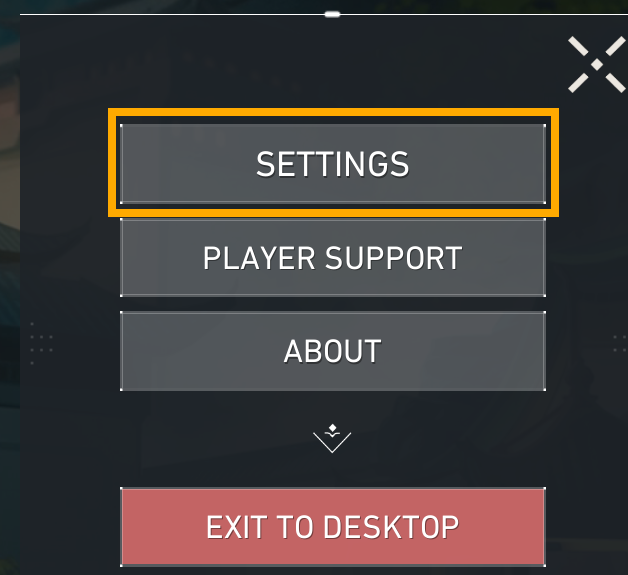
Open Settings.
- Select
Audio, then selectVoice Chat.

Open Audio, then Voice Chat.
Select your SylphSpeak virtual mic
Section titled “Select your SylphSpeak virtual mic”- Under
Volume, setInput Deviceto your SylphSpeak virtual mic. - Make sure the device name matches the virtual mic SylphSpeak sends audio into.

Change Input Device to your SylphSpeak virtual mic.
Set volume and sensitivity
Section titled “Set volume and sensitivity”- Under
Volume, keep your mic volume high enough for VALORANT to hear the virtual mic.

Keep microphone volume at an audible level.
- Set
Mic Sensitivity Thresholdto0.

Set Mic Sensitivity Threshold to 0.
Set voice channels
Section titled “Set voice channels”- Under
Voice Channels, setParty Voice Activation ModetoAutomatic.

Set Party Voice Activation Mode to Automatic.
- Under
Voice Chat, turn on the voice channels you want to use.

Turn on the voice channels you want to use.
Test your VALORANT input
Section titled “Test your VALORANT input”Use VALORANT’s loopback test first so you can hear what the game receives.
- Under
Volume, turnLoopback TesttoON.

Turn Loopback Test on.
- In SylphSpeak, send a short test line, such as:
SylphSpeak check — can you hear me? - Listen to the loopback audio to confirm it sounds correct.
- If the test works, select
Close Settings.

Close Settings after the loopback test works.
Check that it worked
Section titled “Check that it worked”Your voice path is ready when VALORANT’s loopback test plays back the SylphSpeak test line clearly.
If it does not work
Section titled “If it does not work”Try these checks in order:
- Re-check that VALORANT’s
Input Deviceis set to the SylphSpeak virtual mic. - Make sure SylphSpeak is sending audio to the same virtual mic you selected in VALORANT. If the names do not match, check Find your SylphSpeak virtual mic name.
- Make sure
Mic Sensitivity Thresholdis set to0. - Make sure your mic volume is not too low.
- Make sure the voice channel you wish to speak to is
ON. - Turn
Loopback Teston again and send a short test line, such asSylphSpeak check.
Next step
Section titled “Next step”After VALORANT can hear SylphSpeak, try a short message in party or team voice chat. Type at your pace, send the line, and return to the match.