Activate automated text cleanup in SylphSpeak
Turn on automated text cleanup rules so SylphSpeak can adjust typed text before it is spoken. Text cleanup rules can help make text-to-speech sound more natural by changing how certain text is processed before SylphSpeak sends it to the voice.
Before you start
Section titled “Before you start”Make sure you have:
- SylphSpeak open
Config mode>Speech Rulesopen- A paid SylphSpeak account linked to your active device
Understand text cleanup rules
Section titled “Understand text cleanup rules”SylphSpeak text cleanup rules are in Config mode > Speech Rules, under Text Cleanup.
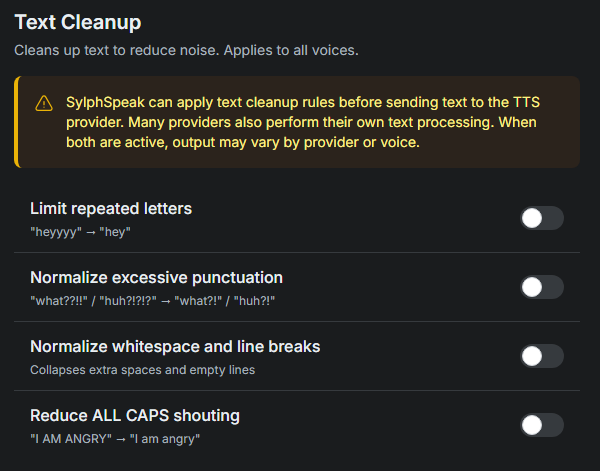
Text cleanup rules live under Speech Rules.
Each voice may also have its own text cleanup behavior. If both SylphSpeak and the selected voice try to clean up the same text, the spoken result may be unpredictable.
Turn on a cleanup rule
Section titled “Turn on a cleanup rule”- In
Config mode, go toSpeech Rules. - Under
Text Cleanup, find the rule you want to use. - Turn on the rule.
- Send a short test message that should trigger the cleanup.
Customize text processing rules
Section titled “Customize text processing rules”You can customize text processing further in Config mode > Advanced, under Text Processing Rules.
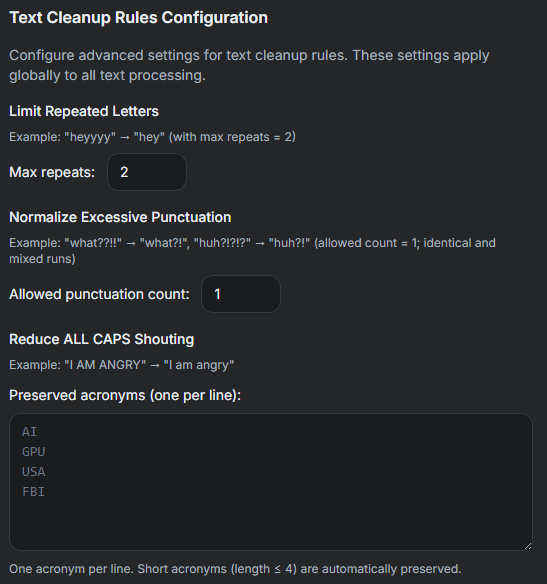
Use Text Processing Rules for more detailed cleanup settings.
Check that it worked
Section titled “Check that it worked”Text cleanup is working when your test message is spoken with the cleanup rule applied. You can also confirm the rule matched in message details:
- Go to
Config mode>Messages. - Select the message you tested.
- Expand
Technical details. - Check
=== Message ===and=== Speech Rules ===to see whether the matching rule was applied.
If the result sounds wrong
Section titled “If the result sounds wrong”If the spoken result is not what you expected:
- Turn off the most recent cleanup rule you enabled.
- Send the test message again.
- If the result improves, leave that rule off or adjust the related text processing setting.
- If the result still sounds wrong, check whether the selected voice has its own cleanup behavior.
- Use Pronunciation and Custom Safety Rules for more granular customization.
Next step
Section titled “Next step”Turn on one cleanup rule, send a short test message, then check the message details to confirm the rule was applied.