Use routes in SylphSpeak
Use routes to send SylphSpeak audio through different virtual microphones.
Routes are useful when you want separate audio paths for different apps, groups, or streaming setups.
Before you start
Section titled “Before you start”Make sure you have:
- SylphSpeak open
Config mode>Devicesopen- A paid SylphSpeak account linked to your active device
- Any extra virtual microphones you want to use already installed
Understand routes
Section titled “Understand routes”SylphSpeak can use up to four routes:
Route ARoute BRoute CRoute D
Each route can map to a different virtual mic.
Use one route when you send SylphSpeak audio to one app. Use two routes when you want to speak to different groups without both groups hearing the same audio. Use three or four routes for advanced loopback, streaming, or custom audio setups.
Choose a virtual mic for each route
Section titled “Choose a virtual mic for each route”- Open
Config mode. - Go to
Devices. - Under
Virtual mic, find the route you want to configure. - In the route’s
Devicecolumn, choose the virtual mic you want that route to use.
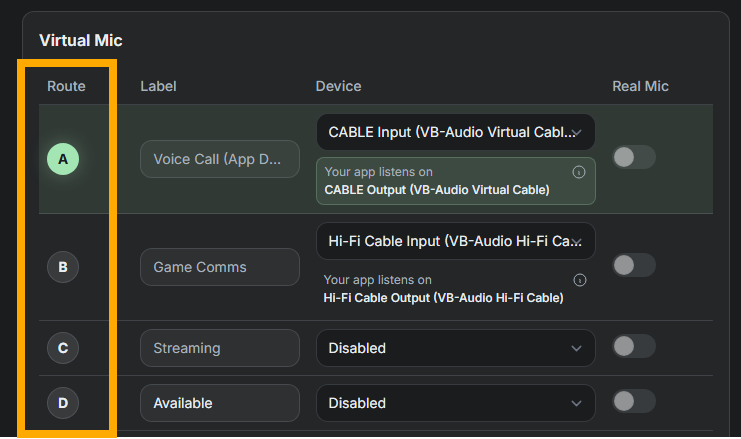
Assign a virtual mic to each route from Devices settings.
The same device can only be assigned to one route at a time.
Select the matching mic in your app
Section titled “Select the matching mic in your app”After you assign a virtual mic to a route, select that same mic in the third-party app you want to connect.
In SylphSpeak, check Your app listens on to find the exact device name.
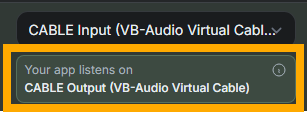
Use the exact device name shown in SylphSpeak when choosing a mic in another app.
In your game, chat app, or streaming app, set the input device to the mic name that matches Your app listens on.
Switch routes from the input bar
Section titled “Switch routes from the input bar”You can switch the active route from the input bar.
- Select the active route icon on the input bar.
- Choose the route you want to use.
- Send a test message.

Select the active route icon to switch routes from the input bar.
Switch routes with keybinds
Section titled “Switch routes with keybinds”You can also switch routes with keybinds.
Open Config mode > Keybinds, then look under Audio routing to view or remap route keybinds.
Check that it worked
Section titled “Check that it worked”Routes are working when the app assigned to the active route receives SylphSpeak audio.
To test:
- Select the route you want to test.
- Send a short message in SylphSpeak.
- Check the connected app’s input meter, voice test, or recording preview.
- Repeat for each route you configured.
If the wrong app receives audio, check that the route’s virtual mic in SylphSpeak matches the input device selected in that app.
Next step
Section titled “Next step”Configure one route first. After it works, add another route only if you need a separate audio path.