Connect SylphSpeak to Overwatch
Set Overwatch to use the system communications input that points to your SylphSpeak virtual mic so your typed text-to-speech lines come through in-game voice chat. Overwatch does not let you pick a specific microphone inside the game. Instead, set the SylphSpeak virtual mic as the right input device in Windows, then tell Overwatch to use communications devices.
Before you start
Section titled “Before you start”Make sure you have:
- SylphSpeak open
- Overwatch open
- Your SylphSpeak virtual mic installed and available as an input device
Open Overwatch sound settings
Section titled “Open Overwatch sound settings”- In Overwatch, select the settings cog in the top-right corner.

Select the settings cog in the top-right corner.
- Select
Options.
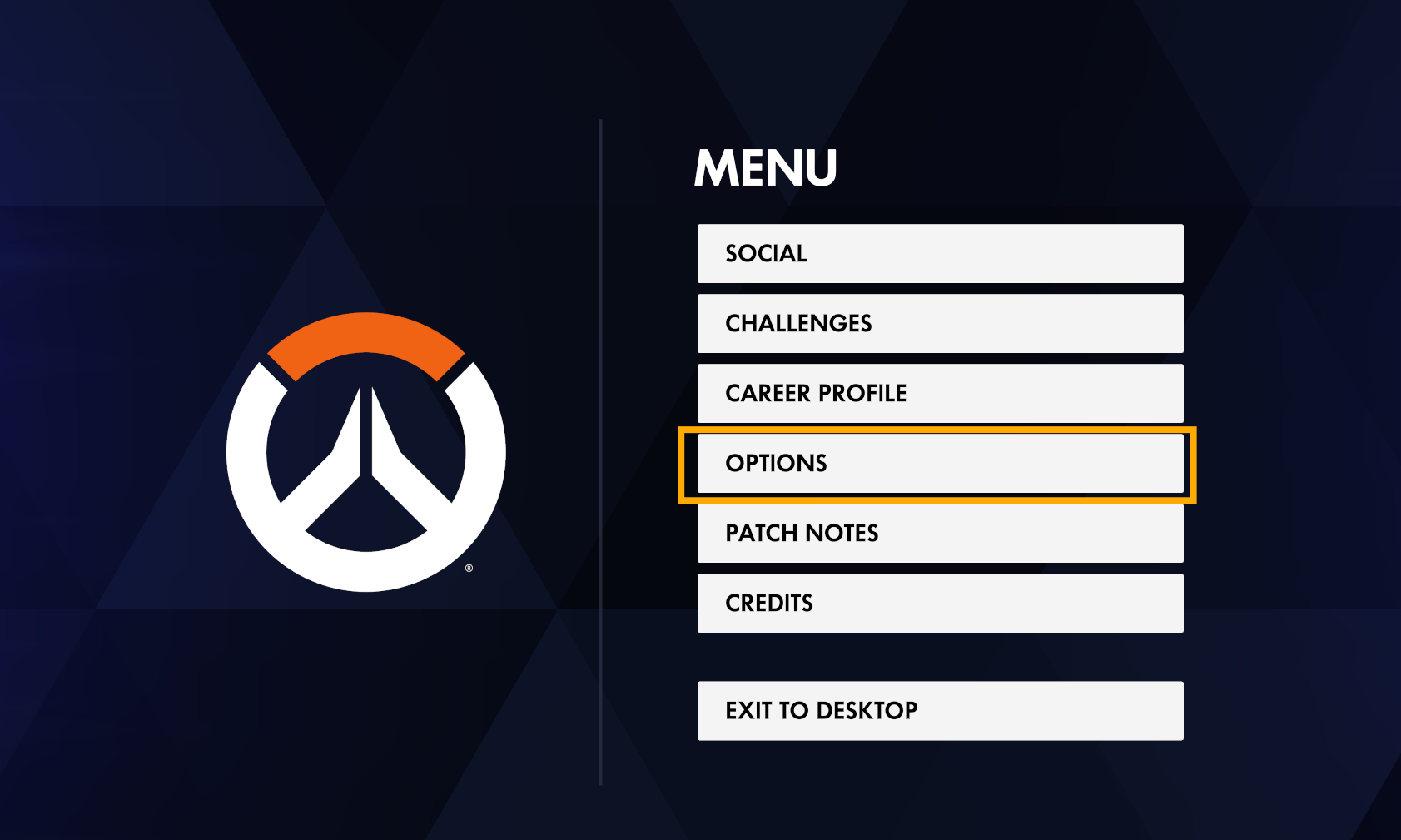
Open Options.
- Under
Voice Chat, selectSound.

Open Sound under Voice Chat.
Set voice volume
Section titled “Set voice volume”Under Voice Volume, make sure Voice Chat Mic Volume is not muted or too low.

Keep Voice Chat Mic Volume at an audible level.
Enable voice channels
Section titled “Enable voice channels”Under Channels, enable the channels you want to speak in.

Enable the voice channels you want to use.
Set capture options
Section titled “Set capture options”Under Capture:
- Set
Voice Chat DevicestoComms Devices. - Set
Voice Chat ModetoOpen Mic.

Use Comms Devices and Open Mic.
Set your system input on Windows
Section titled “Set your system input on Windows”- Open Windows sound settings.
- Under
Input, select the arrow next to the current speaking or recording device.

Open the input device list from Choose a device for speaking or recording.
- Select your SylphSpeak virtual mic, then select the arrow on that device to open its properties.

Open properties for the SylphSpeak virtual mic (for example, CABLE Output).
- Under
Set as default sound device, choose the option that sets this device as the default for communications.

Set the virtual mic as the default for communications.
If the device is already the default sound device, the selector may say Also use as default for communications instead of Is default for communications or similar. Use that option so communications also points at this mic.
- Return to Overwatch and keep
Voice Chat Devicesset toComms Devices.
Test your Overwatch input
Section titled “Test your Overwatch input”- Join a voice channel where you can safely test.
- In SylphSpeak, send a short test line, such as:
SylphSpeak check — can you hear me? - Ask someone in the voice channel to confirm they heard the line.
- If they can hear it, your Overwatch voice path is ready.
Check that it worked
Section titled “Check that it worked”Your voice path is ready when Overwatch sends the SylphSpeak test line through the voice channel clearly.
If it does not work
Section titled “If it does not work”Try these checks in order:
- Re-check that
Voice Chat Devicesis set toComms Devices. - Re-check that your Windows input device is set to the SylphSpeak virtual mic.
- Make sure SylphSpeak is sending audio to the same virtual mic selected in Windows. If the names do not match, check Find your SylphSpeak virtual mic name.
- Make sure
Voice Chat Modeis set toOpen Mic. - Make sure
Voice Chat Mic Volumeis not muted or too low. - Make sure the voice channel you want to use is enabled.
- If the audio crackles, cuts in and out, sounds scratchy, or sounds distorted, check Set up virtual mic format.
Next step
Section titled “Next step”After Overwatch can hear SylphSpeak, try a short message in your voice channel. Type at your pace, send the line, and return to the match.