Use Draft Stash in SylphSpeak
Use Draft Stash to temporarily save a message, then bring it back to the input bar when you are ready to send it.
Draft Stash is useful when you are writing a response, but the conversation moves on before you press Send.
Before you start
Section titled “Before you start”Make sure you have:
- SylphSpeak open
- A paid SylphSpeak account linked to your active device
Understand Draft Stash
Section titled “Understand Draft Stash”Draft Stash gives you up to four slots for temporary message drafts.
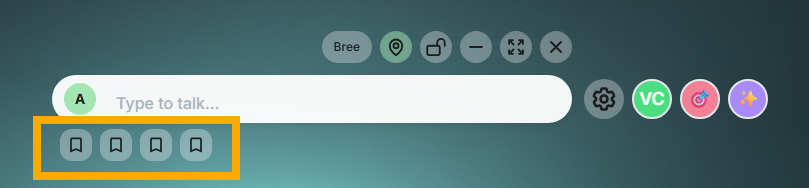
Draft Stash gives you up to four temporary message slots.
Draft Stash saves text only. A stashed message is not linked to a voice, voice profile, route, or sound setting.
Save a message to a stash slot
Section titled “Save a message to a stash slot”- Type your message in the input bar.
- Do not send it yet.
- Select one of the Draft Stash buttons to store the message.

A filled Draft Stash slot means a message is saved there.
Insert a stashed message
Section titled “Insert a stashed message”- Select the filled Draft Stash slot.
- SylphSpeak inserts the saved message back into the input bar.
- Edit the message if needed.
- Send it when you are ready.

Select a filled slot to bring the stashed message back into the input bar.
Use Draft Stash keybinds
Section titled “Use Draft Stash keybinds”You can use keybinds to:
- Save text to a Draft Stash slot
- Insert a stashed message back into the input bar
- Clear a Draft Stash slot
Change how many stash slots appear
Section titled “Change how many stash slots appear”You can reduce the number of Draft Stash slots or hide Draft Stash by setting the slot count to 0.
- Open
Config mode. - Go to
Advanced. - Under
Input Systems, changeDraft Stash Slots.
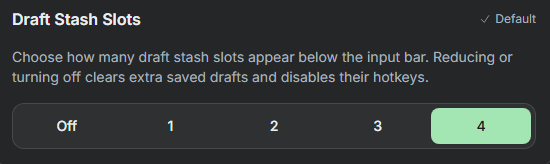
Change Draft Stash Slots to control how many stash buttons appear.
Check that it worked
Section titled “Check that it worked”Draft Stash is working when you can save text into a slot, select that slot again, and see the saved text return to the input bar.
Next step
Section titled “Next step”Try saving one draft line, then insert it back into the input bar. If you use Draft Stash often, set up or adjust its keybinds so you can save and restore messages from the keyboard.