How to use text-to-speech as a microphone on Windows and macOS
- SylphSpeak Team
- Guides

Text-to-speech (TTS) usually ends at your speakers.
You type something, a synthetic voice reads it aloud, and you hear the result.
But what if you want someone else to hear the result in a call, game, stream, meeting, or voice chat?
In those apps, other people hear you through your microphone input.
So can you use text-to-speech as a microphone on a desktop computer?
Yes. You can use text-to-speech as a microphone on Windows or macOS by sending generated speech through a virtual microphone and selecting that virtual microphone as the input in Discord, Zoom, games, meetings, or other voice apps.
The basic path looks like this:
Typed text ↓Text-to-speech ↓Virtual microphone ↓Voice app, meeting app, game, or stream ↓Other people hear the speechThat is the core idea. The app where people should hear you does not need to understand text-to-speech. It only needs to receive audio from something it can use as a microphone.
This guide focuses on the desktop version of that setup: Windows or macOS, a TTS app, a compatible virtual microphone, and the app where you want people to hear you.
The simple version
A normal microphone sends your voice into an app.
TTS as a microphone sends a generated voice into an app.
Instead of:
Your voice → physical microphone → voice appyou have:
Your text → synthetic voice → virtual microphone → voice appTo the app where people should hear you, the second setup still behaves like microphone audio.
That is why this can work across different apps. You do not necessarily need a special Discord integration, a bot in every server, a plugin for each game, or built-in TTS support from the app where you want to talk.
You could play TTS out loud through your speakers and let a physical microphone pick it up, but that is noisy and unreliable. A virtual microphone keeps both steps inside the computer: the TTS app makes the voice, and the voice app receives it as microphone audio without sound needing to play out loud in your room.
The bridge between TTS and your microphone input
TTS audio by itself is just sound made by an app.
When you hear something locally, that means you hear it on your own computer, usually through your speakers or headphones.
Local sound is not the same as microphone sound. If TTS only plays locally, you may hear it, but the app where people should hear you may not receive it as microphone input.
To use TTS as a microphone, you need a bridge between two places:
- the app that makes the TTS voice
- the app where other people should hear that voice
That bridge is a virtual microphone. It gives the generated speech a microphone path instead of only a speaker path.
What is a virtual microphone?
A virtual microphone is software that acts like a microphone input for other apps.
It does not listen to sound in your room like a physical microphone. Instead, it carries audio from one app to another.
You may also see people call this kind of setup a virtual audio device or virtual audio cable. In this article, the main term is virtual microphone because that is how the app where people hear you uses it.
Think of it as an invisible audio cable inside your computer:
TTS app ↓Virtual microphone ↓Voice app, meeting app, or gameThis is why the device names can seem backwards at first. One app sends sound into the bridge. The other app receives sound from it. It is the same path viewed from opposite ends.
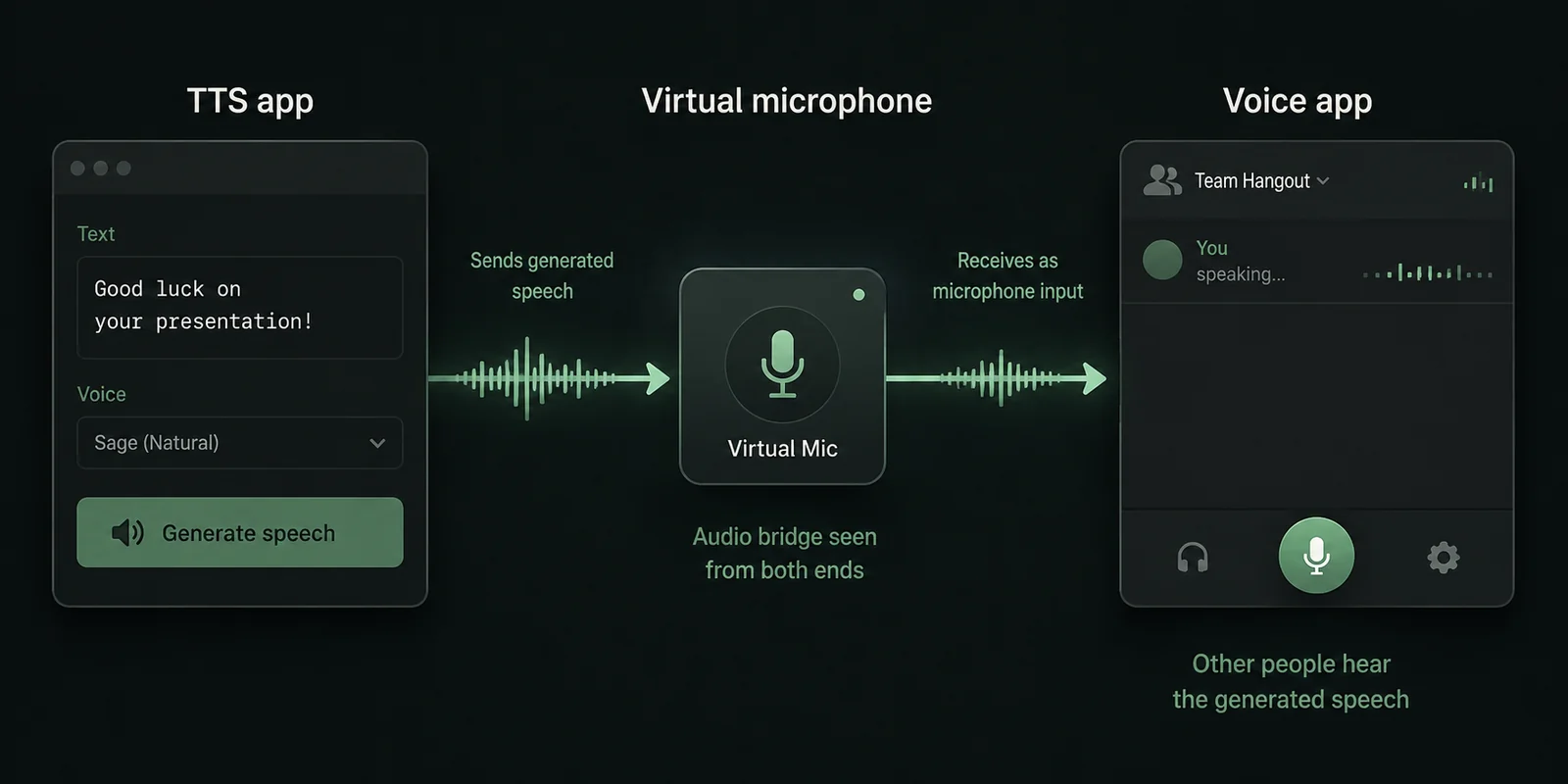
A virtual microphone bridges the TTS app and the app where people should hear you. One side receives generated audio; the other appears as microphone input.
Neither Windows nor macOS includes this kind of general-purpose bridge by default. Most setups use a separate virtual audio driver or routing app.
On macOS, Audio MIDI Setup can help you look at your audio devices, but it does not replace the virtual microphone that carries sound between apps.
How to set up TTS as a microphone on desktop
On Windows and macOS, almost every desktop setup follows the same four steps.
Step 1: Install or choose a virtual microphone
Install a compatible virtual audio driver or routing tool.
After installation, it should appear alongside your normal speakers, headphones, and microphones.
For SylphSpeak-specific recommendations by OS and route count, see Pick and install a virtual mic for SylphSpeak.
Step 2: Send TTS audio into the virtual microphone
Open your TTS application and choose the virtual microphone as the destination for generated speech.
In the TTS app, this is usually the device you send audio to. It may be listed as an output device, playback device, speaker, audio device, or route. Choose the side of the virtual microphone that receives audio from the TTS app.
The important question is simple: where does the generated audio go?
Choose the virtual audio path rather than sending it only to your normal speakers.
Step 3: Select the virtual microphone as input
Open the voice app, meeting app, game, or streaming tool where people should hear you.
Go to its microphone or input settings and choose the corresponding virtual microphone.
You now have a complete path:
TTS software ↓Virtual microphone ↓Voice-chat microphone inputWhen the TTS app generates speech, the other app should show microphone activity just as it would from a physical microphone.
Step 4: Test what the other app actually receives
Do not stop when you can hear the voice yourself.
Hearing it locally only confirms that speech was generated and played somewhere on your computer. It does not prove that the voice app is receiving it.
Check the app’s microphone meter, built-in mic test, a private call, or another safe test environment.
If the app shows no input, troubleshoot the path between the TTS app and the listener.
Follow the sound, not the device label
The exact device names depend on the virtual audio software you install, so it is more useful to follow where the sound goes than to memorize a particular label.
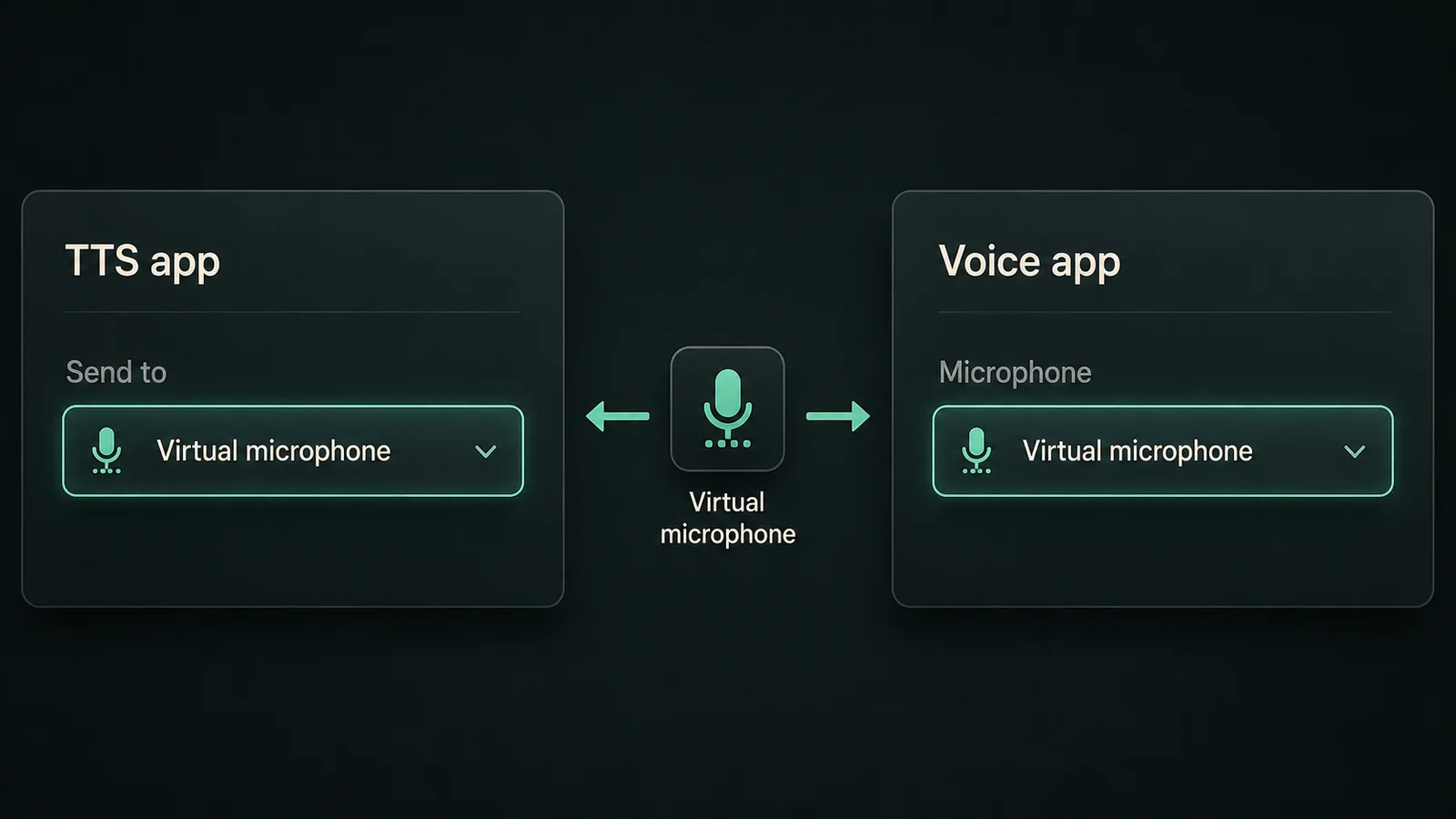
The setup step is practical: send speech to the virtual microphone in the TTS app, then select the matching microphone input in the app where people should hear you.
In one app, the virtual microphone may look like the place you send audio. In another app, it may look like the microphone you receive audio from. Those names can feel inconsistent, but the path is the same.
If the audio sounds distorted, crackly, or does not appear correctly in the app where people should hear you, check the setup documentation for your virtual microphone or TTS app. For SylphSpeak setups, see Set up virtual mic format.
What changes between Windows and macOS?
The overall idea is the same on Windows and macOS, but the pieces around it can differ.
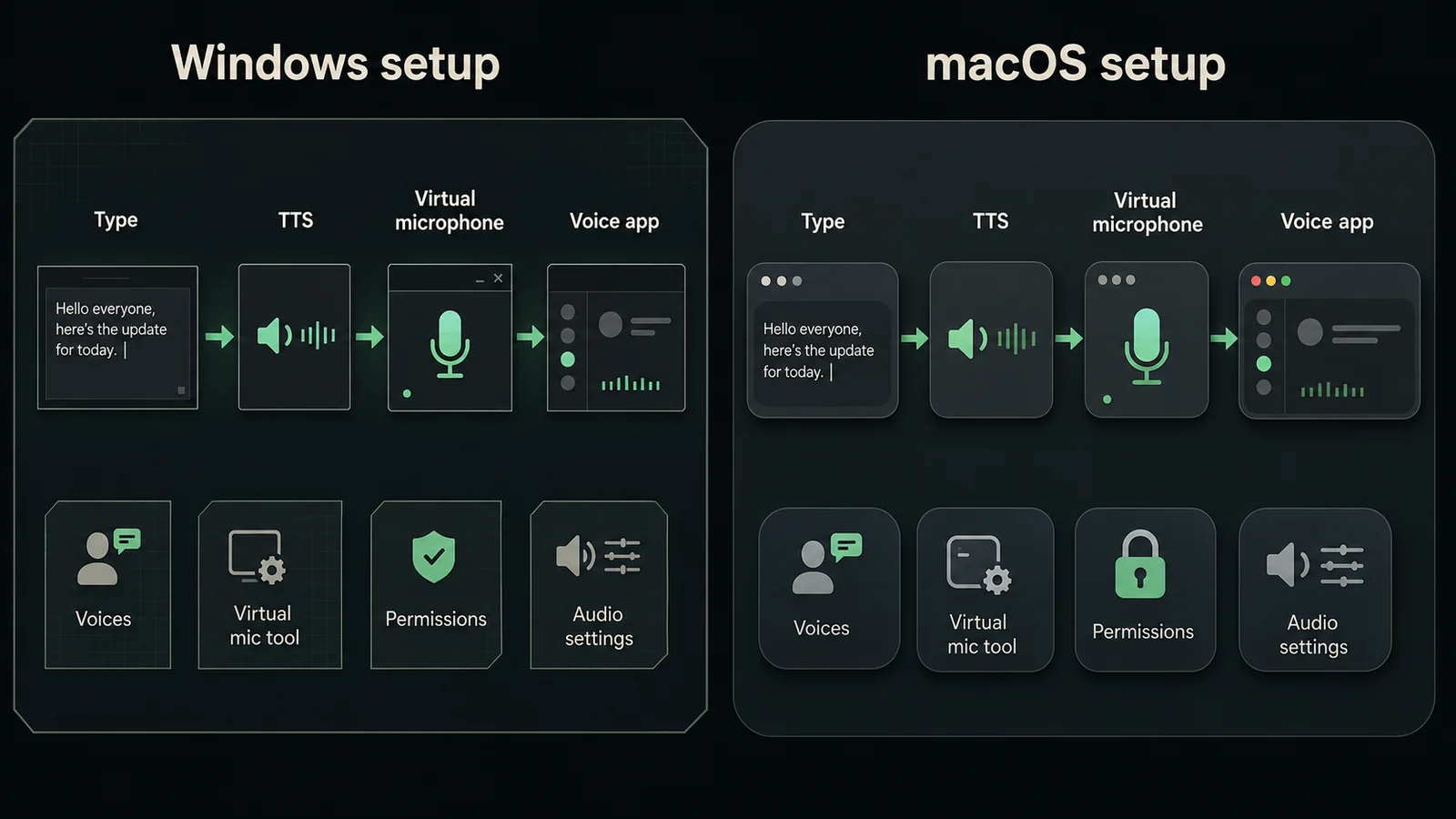
The workflow can feel the same across Windows and macOS, even when the available voices, virtual microphone tools, and permission settings differ.
First, TTS apps and voice options are often tied to one operating system. A tool that works on Windows may not have a macOS version, and a Mac-focused tool may not work on Windows. The built-in system voice libraries are also different between Windows and macOS, so the voices available on one computer may not be available on another.
SylphSpeak LIVE is designed to keep the typed-speech workflow familiar across Windows and macOS even when the system-level audio pieces differ.
Second, virtual microphone tools also differ by operating system. Some audio-routing tools support more than one platform, while others are built for only Windows or only macOS. On macOS, many modern virtual audio tools can appear as normal audio devices without asking you to lower system security or install older-style system extensions. On Windows, virtual microphone tools often behave more like installed audio drivers.
For most readers, the practical takeaway is simple: choose a virtual microphone that supports your operating system and follow that tool’s setup instructions.
Third, microphone permissions matter. macOS has long required apps to be allowed in Privacy & Security before they can use microphone input. Windows also has microphone privacy controls, including settings for app access and desktop app access. If your TTS path looks correct but the voice app receives nothing, check both the app’s microphone selection and the operating system’s microphone permissions.
Can I hear the TTS too?
Yes, but it usually needs to be enabled.
A useful communication setup can send the same generated speech in two directions:
→ virtual microphone → other peopleTTS generated audio → headphones → youThis is commonly called monitoring.
Some TTS-to-microphone programs support it directly. More complex DIY setups can also achieve it with additional audio routing. The setting may be inside your TTS app, or it may be in your operating system’s sound settings.
Monitoring is useful because it lets you hear pronunciation, volume, and voice changes. Just remember that hearing the voice locally and sending it as microphone audio are separate paths.
In SylphSpeak, that local playback path is the listening device.
Bluetooth headphones can add confusion here. Some headphones switch audio modes when their built-in microphone is active, which can lower sound quality or change which device the system prefers. If monitoring sounds strange, or your input/output device changes unexpectedly, test once with wired headphones or your computer’s built-in audio. If that fixes the problem, the issue may be the Bluetooth audio mode rather than the TTS setup itself.
Why can TTS work locally but fail in Discord or a game?
Because speech generation is only one part of the path.
Text ↓TTS generation ✓ ↓Virtual microphone ? ↓Application input ? ↓Remote transmission ?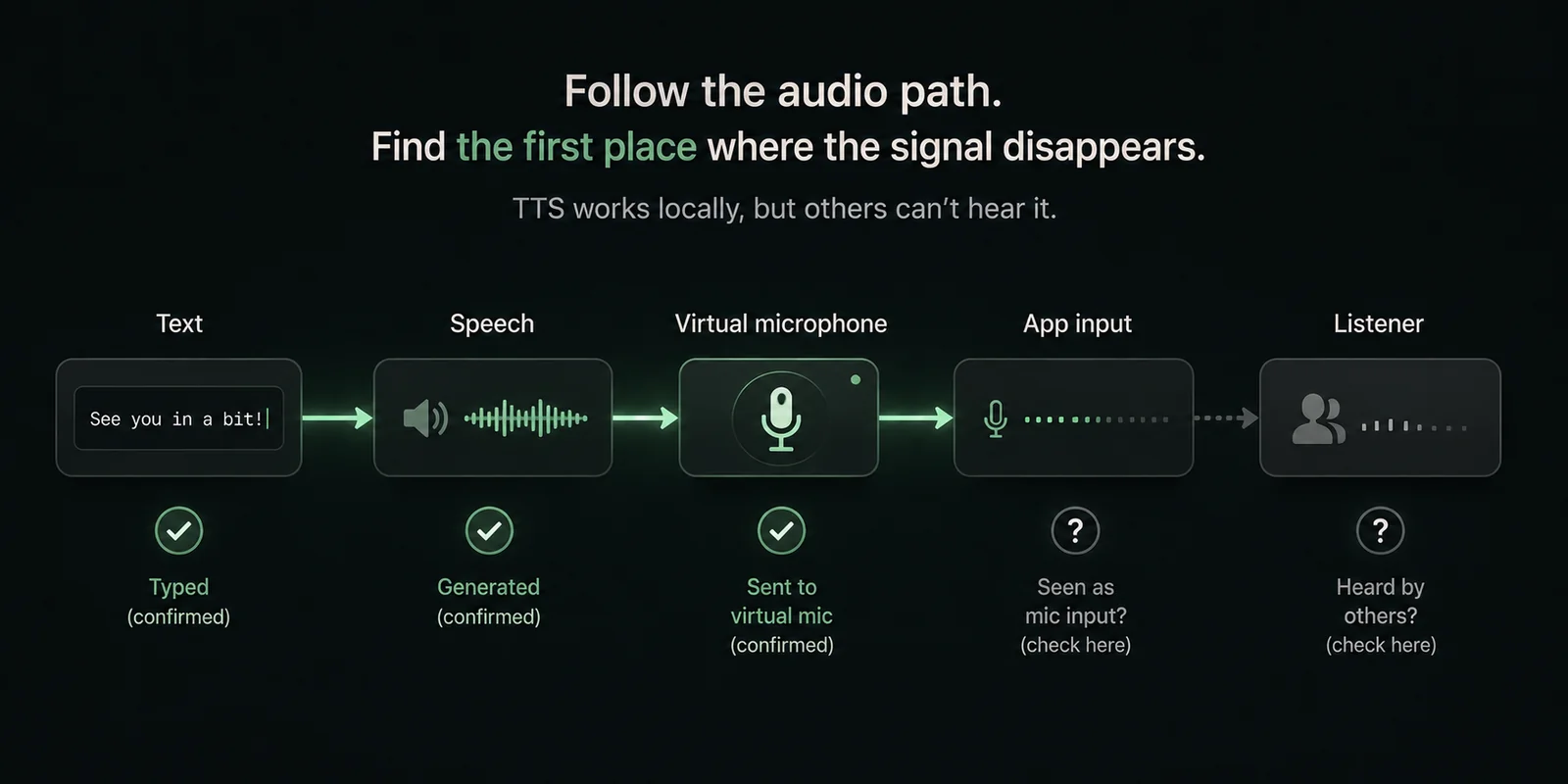
If you can hear the TTS locally but other people cannot, follow the signal path and find the first stage where the audio disappears.
If you can hear the voice locally but nobody else can, the TTS engine may be working perfectly. The opposite can also happen: other people may hear the virtual microphone while you hear nothing locally because monitoring is off.
Common causes farther down the path include:
- the wrong microphone selected
- voice detection or input sensitivity settings
- noise suppression
- audio settings that do not match
- the app switching back to another microphone
If the names do not match between your TTS app and the voice app, start with Find your SylphSpeak virtual mic name.
The useful troubleshooting rule is to follow the sound from the TTS app toward the listener and find the first place where it disappears.
Why does the beginning or end of TTS sometimes get cut off?
Voice apps often decide when microphone audio should start and stop transmitting.
Synthetic speech can begin very suddenly. If the app’s voice gate takes a moment to open, the first sound may already have started before the microphone is transmitting.
That can turn:
“Hello, how are you?”
into:
“ello, how are you?”
A similar problem can happen at the end of a message if the app closes the microphone too soon.
A tiny pause before or after generated speech can help. Changing input sensitivity, push-to-talk, or related voice settings may help too. This is usually a microphone-processing problem, not necessarily a problem with the TTS voice itself.
Three ways people try to use TTS in voice chat
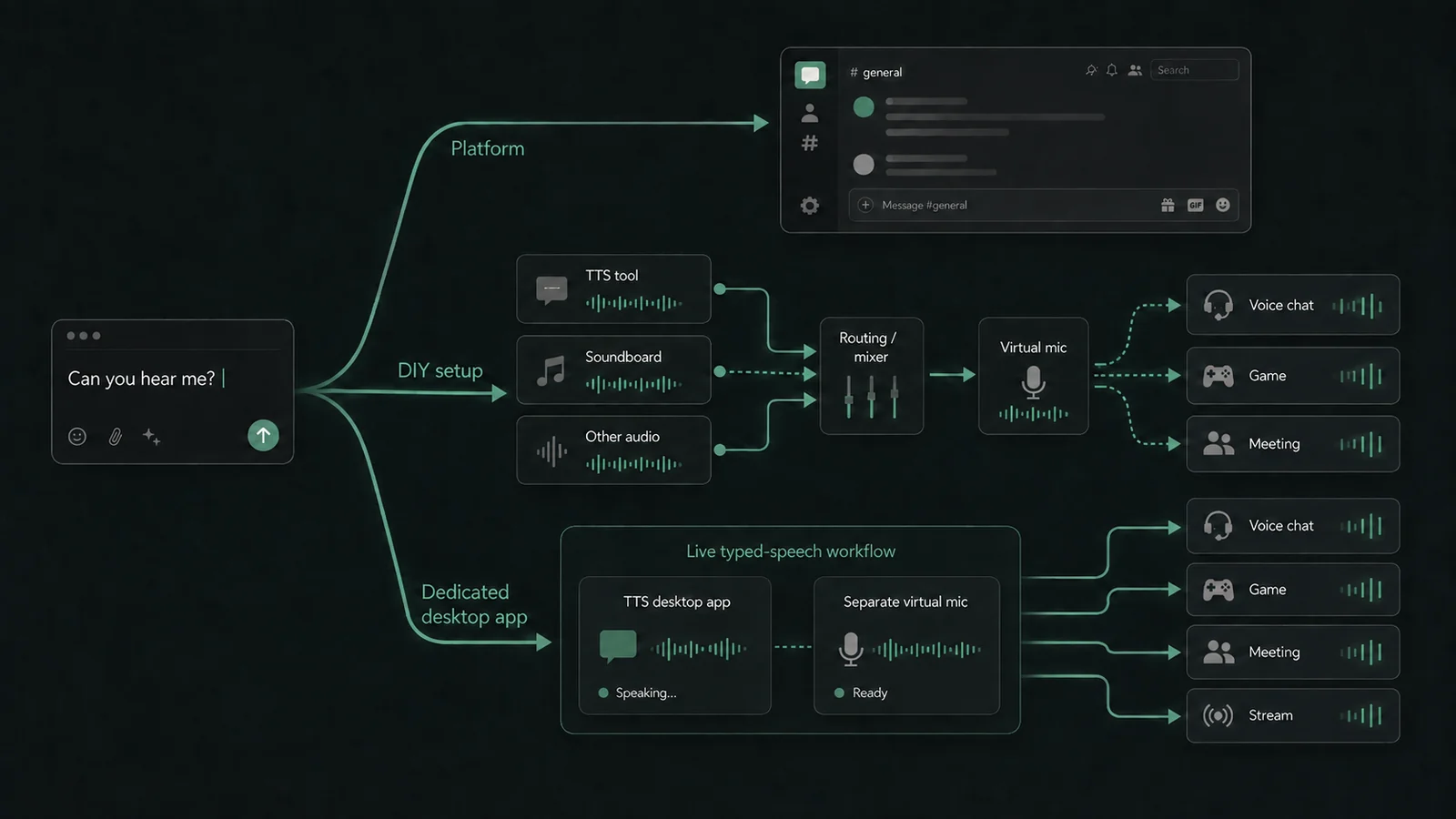
People usually reach TTS-as-microphone through one of three paths: platform TTS, a DIY audio setup, or a dedicated desktop workflow for live typed speech.
There is more than one way to solve this problem. The right choice depends on where you communicate, how often you use TTS, and how much setup you want to manage.
1. Use a platform TTS feature or bot
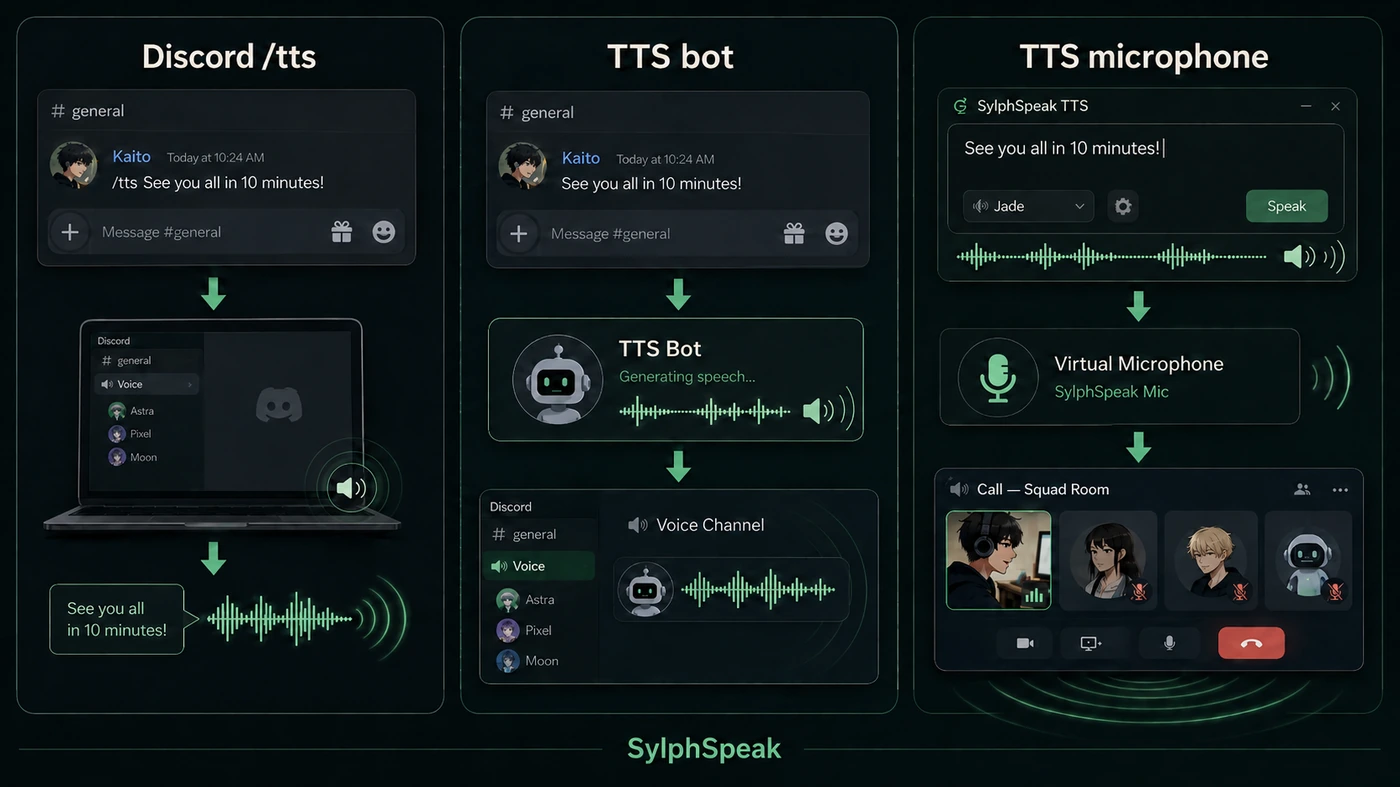
Some communication platforms can read text aloud themselves. Discord, for example, has text-to-speech features for messages, and bots can be built to join voice channels and speak there.
This can be convenient when all of your communication happens in one platform and you want little or no local audio setup.
The tradeoff is that the setup usually belongs to that platform. A bot may need server permission, may require admin installation, and may not follow you into games, meetings, streams, or other apps.
It can also make identity confusing. If the voice belongs to the bot or platform instead of to you, other people may not know who actually said something. In some setups, more than one person can use the same bot voice, which makes the conversation feel less personal and easier to misread.
Best when:
- all communication happens in one platform
- minimal local setup matters
- server permissions or shared voice behavior are acceptable
Limitations:
- platform-specific
- may require admin or bot setup
- does not naturally follow you into other voice environments
2. Use DIY TTS plus a virtual microphone
A DIY setup usually combines a TTS tool, a virtual microphone, and the app where people should hear you.
This can be a good fit if you want control, prefer open-source or custom components, already understand audio routing, or only use TTS occasionally.
Some general TTS and AAC tools are excellent at making speech audio. They may offer high-quality voices, pronunciation controls, saved phrases, careful editing, or slower processing that works well when the final audio does not need to happen in the middle of a live conversation.
Some local or low-cost AI voice tools can produce very realistic speech, but quality often comes with tradeoffs. Local neural TTS may need significant RAM, GPU memory, or CPU/GPU time, and CPU-only generation can be slower than real-time. If the same computer is also running a game, meeting app, stream, or other heavy software, that resource use can make live conversation harder.
Soundboard apps and audio players can also be part of this DIY world, especially for saved clips or prepared lines. They have a reputation for jokes, memes, and effects, but the more important limitation is practical: a soundboard usually plays audio you already saved. It does not generate a new spoken sentence in the moment.
These can be useful when you want to:
- listen to text yourself
- read an article or ebook aloud
- create narration for a video or podcast
- prepare lines before using them elsewhere
- play back saved soundboard lines
- use an AAC app for in-person or device-based communication
The tradeoff is that making good TTS audio or playing saved audio is not the same as joining a live voice conversation. A tool can sound excellent and still leave you responsible for routing, monitoring, troubleshooting, and live-conversation controls.
A general TTS, AAC, or soundboard tool may feel DIY and clunky when you try to use it as a live microphone. It may not handle voice-app sensitivity, sudden starts and stops, quick repeated messages, new lines generated on demand, or rapid turn-taking very well.
Best when:
- you want control
- you are comfortable configuring multiple tools
- you prefer open-source or custom components
- you use TTS occasionally
Limitations:
- more setup and troubleshooting
- separate apps or credentials may need to be managed
- monitoring, routing, and live-conversation controls may be fragmented
3. Use a dedicated TTS-to-microphone desktop app
A dedicated TTS-to-microphone desktop app is built around using TTS as part of an active conversation.
It may still rely on a compatible third-party virtual microphone. The difference is that the app is designed around the workflow surrounding that microphone path: composing quickly, sending the right message at the right time, monitoring when needed, cancelling speech, using shortcuts, and keeping track of what is happening.
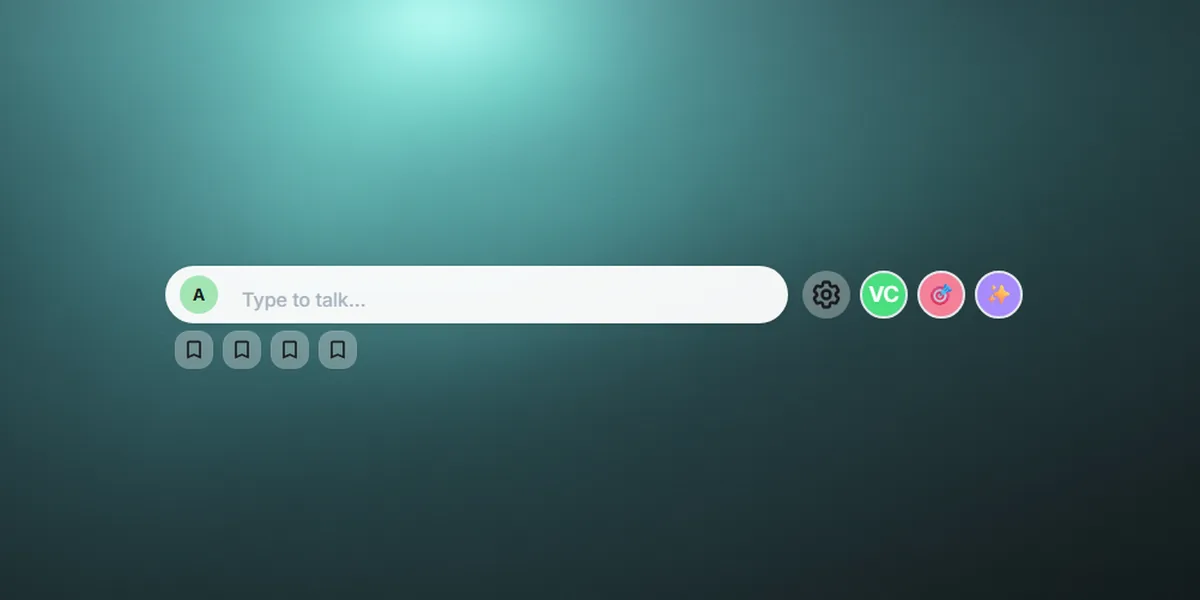
SylphSpeak LIVE takes this approach. It does not replace the need for a compatible virtual microphone, but it is designed to make typed speech usable across voice apps, meetings, games, streams, and other live environments.
Best when:
- typed speech is used repeatedly
- you communicate across multiple applications
- responsiveness and communication controls matter
- you want one workflow instead of several separate tools
The underlying audio concept is the same. The difference is that the workflow is designed around communicating through typed speech rather than simply generating an audio file.
Occasional TTS and everyday typed speech are different problems
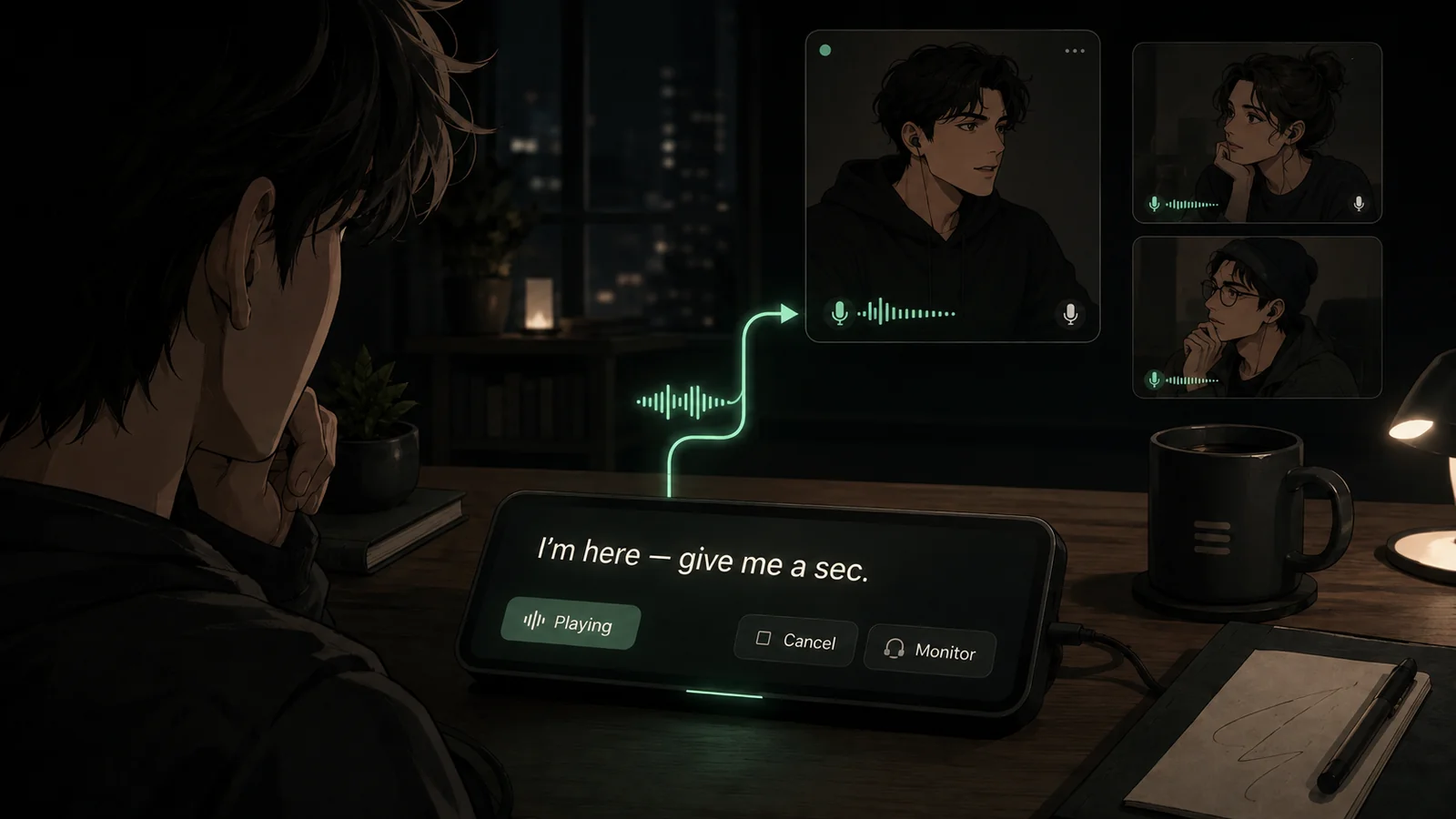
Everyday typed speech is not only audio routing. It is the moment when a typed thought enters a live conversation under the speaker’s control.
If you only want to send an occasional generated sentence, almost any working TTS generator and virtual microphone may be enough.
If typed speech is how you regularly participate in live conversations, the experience starts to depend on more than whether audio reaches the microphone.
Time to first audio
A voice can sound excellent and still be frustrating if every response arrives several seconds late.
In live conversation, latency affects whether your response reaches people while it is still relevant.
Fast composition
People speaking aloud can respond immediately. Someone using typed speech has to compose a message first.
Saved phrases, prediction, keyboard shortcuts, draft preparation, and efficient focus behavior can reduce that disadvantage.
Monitoring
Knowing what other people are about to hear matters when you are testing pronunciation, volume, or a new voice.
Clear message state
A communication tool should make it obvious whether a message is generating, waiting, playing, finished, cancelled, or failed.
Without that feedback, it becomes hard to know whether you have entered the conversation at all.
Cancellation and interruption
A generated sentence may stop being relevant before it finishes.
The ability to stop speech is not merely a media-player convenience. It is part of turn-taking.
Voice consistency
If synthetic speech becomes something you use every day, choosing a voice is different from picking the funniest or most impressive demo.
You may care about intelligibility, identity, latency, language support, privacy, consistency across applications, and whether you actually want to hear that voice hundreds of times.
Routing flexibility
A setup that works only in one Discord server solves a different problem from a setup you want to use across Discord, games, meetings, and streams.
The more places you communicate, the more useful a system-level approach becomes.
Do you need a dedicated TTS-to-microphone app?
Not necessarily.
For occasional TTS, a generator plus a virtual microphone may be enough.
For one-platform TTS, a bot or built-in platform feature may be enough.
For frequent cross-app typed speech, a dedicated desktop app becomes more useful.
At that point, the important question becomes less:
Which TTS voice sounds best?
and more:
What happens between deciding what I want to say and the other person actually hearing it?
That interval contains many of the problems that matter in live typed speech: composing quickly, waiting for synthesis, knowing whether the message is playing, stopping speech that no longer fits, and keeping the same voice usable across different places.
Using SylphSpeak as a TTS microphone
If you want typed speech to work as an everyday microphone workflow rather than a collection of separate audio tools, SylphSpeak LIVE is built for that.
You type a message, generate speech, and send that audio through a compatible virtual microphone that a voice app, meeting app, game, or streaming tool can select as its input.
SylphSpeak does not include a native virtual audio cable, so you still need a compatible virtual microphone. Start with Getting started, then pick and install a virtual mic, then connect your apps with the Virtual mic setup guides.
If you are deciding whether the workflow fits you, you can also read the SylphSpeak LIVE announcement or try SylphSpeak LIVE.
The important part is not the microphone
A virtual microphone solves a routing problem.
It does not, by itself, solve the interaction problem.
Someone communicating through typed speech still has to compose while others are speaking, decide when to enter the conversation, wait for synthesis, know whether the message is being transmitted, recover from errors, interrupt speech that is no longer relevant, and maintain a voice that feels usable over time.
That is why text-to-speech as a microphone is better understood as a live communication system rather than simply an audio trick.
The synthetic voice is one part of it.
Getting that voice into the conversation, at the right moment and under the sender’s control, is the rest.
FAQ
Can I use text-to-speech as my microphone?
Yes. Generate the speech in one application, send that audio through a virtual microphone, and select that virtual microphone as input in the app where people should hear you.
Can I use TTS as a microphone in Discord?
Yes. The microphone setup is separate from Discord’s text-channel TTS features. A virtual microphone can carry generated speech into Discord as microphone input.
For SylphSpeak, see Connect SylphSpeak to Discord. The same idea applies in meetings: Connect SylphSpeak to Zoom.
Can I use TTS as a microphone in games?
Usually, yes, if the game accepts a standard microphone input device. The setup is the same idea: send TTS audio through a virtual microphone, then choose that virtual microphone in the game’s voice settings.
App-by-app steps live under Virtual mic setup guides.
Does TTS as a microphone work on Windows?
Yes. Windows can use third-party virtual microphone or virtual audio tools to route generated speech into apps that accept microphone input. You also need a TTS app that can send audio to that virtual microphone, plus the right Windows microphone privacy settings.
Does TTS as a microphone work on macOS?
Yes. macOS can use third-party virtual microphones to send generated speech into applications that accept microphone input. You also need a compatible TTS app that can send audio to that virtual microphone, and you may need to allow microphone access in Privacy & Security.
Do I need a virtual microphone or virtual audio cable?
Usually, yes. A virtual microphone, sometimes called a virtual audio device or virtual audio cable, is the bridge that lets one app send generated speech while another app receives it as microphone input.
SylphSpeak does not include a native virtual audio cable, so you need a compatible virtual microphone for apps like Discord, Zoom, games, or streaming tools to receive SylphSpeak as microphone input. Start with Getting started, pick and install a virtual mic, and the Virtual mic setup guides.
Can I hear the TTS while other people hear it too?
Yes, if monitoring or listening is enabled. This setting may be inside your TTS app, or it may be in your operating system’s sound settings.
Without monitoring, the virtual microphone may send TTS to other people without playing it back to your headphones.
In SylphSpeak, configure that with your listening device.
Why can I hear the voice but nobody else can?
That usually means TTS is playing locally on your computer, but the sound is failing later in the path.
Check the virtual microphone, the app’s selected microphone, microphone permissions, and microphone-processing settings. If the device names do not match, use Find your SylphSpeak virtual mic name.
Why does the start of my TTS get cut off?
Voice apps may open the microphone late when synthetic speech starts suddenly. A short pause before speech, input sensitivity changes, or push-to-talk settings may help.
SylphSpeak includes built-in padding around generated speech. That small buffer helps the voice app open its gate before the words begin and stay open long enough for the end of the line.